
ReqRes documentation
On this page
These pages describe ReqRes 1.1 on macOS 14.6 or later. If you are new to ReqRes, follow the 4 pages under Start here in order.
What ReqRes does
ReqRes is a native macOS app for debugging HTTP and HTTPS traffic. It captures the requests your apps send, shows each request and its response, and lets you change them. You work in the ReqRes window, or an AI agent works with the same traffic over MCP.
While capture runs, a network extension points your Mac's proxy settings at ReqRes, at 127.0.0.1:8034 by default. You can change the port. Apps that read the system proxy arrive with no setup. Command-line tools, such as curl, git and the Claude Code CLI, need a few environment lines first.
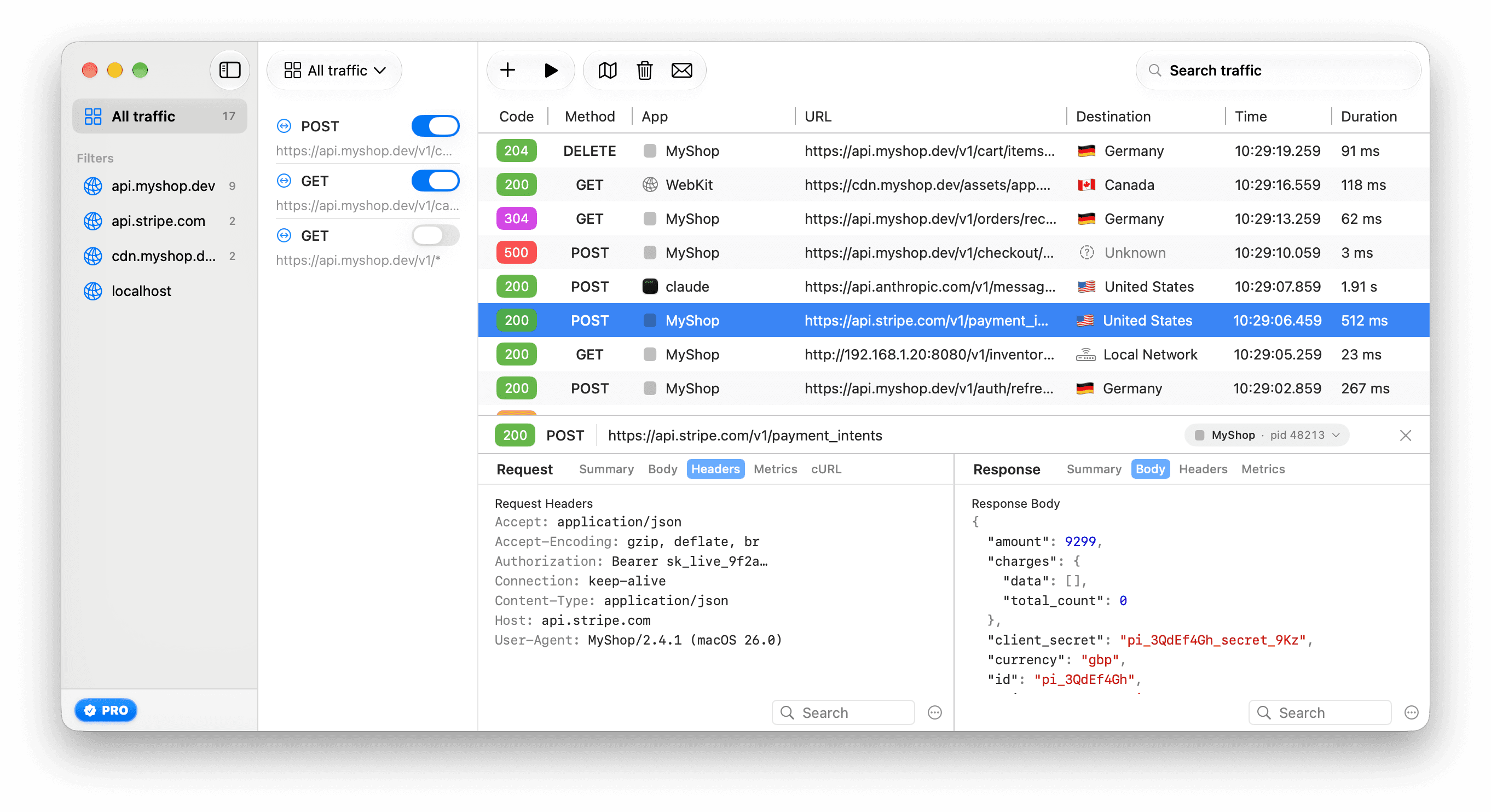
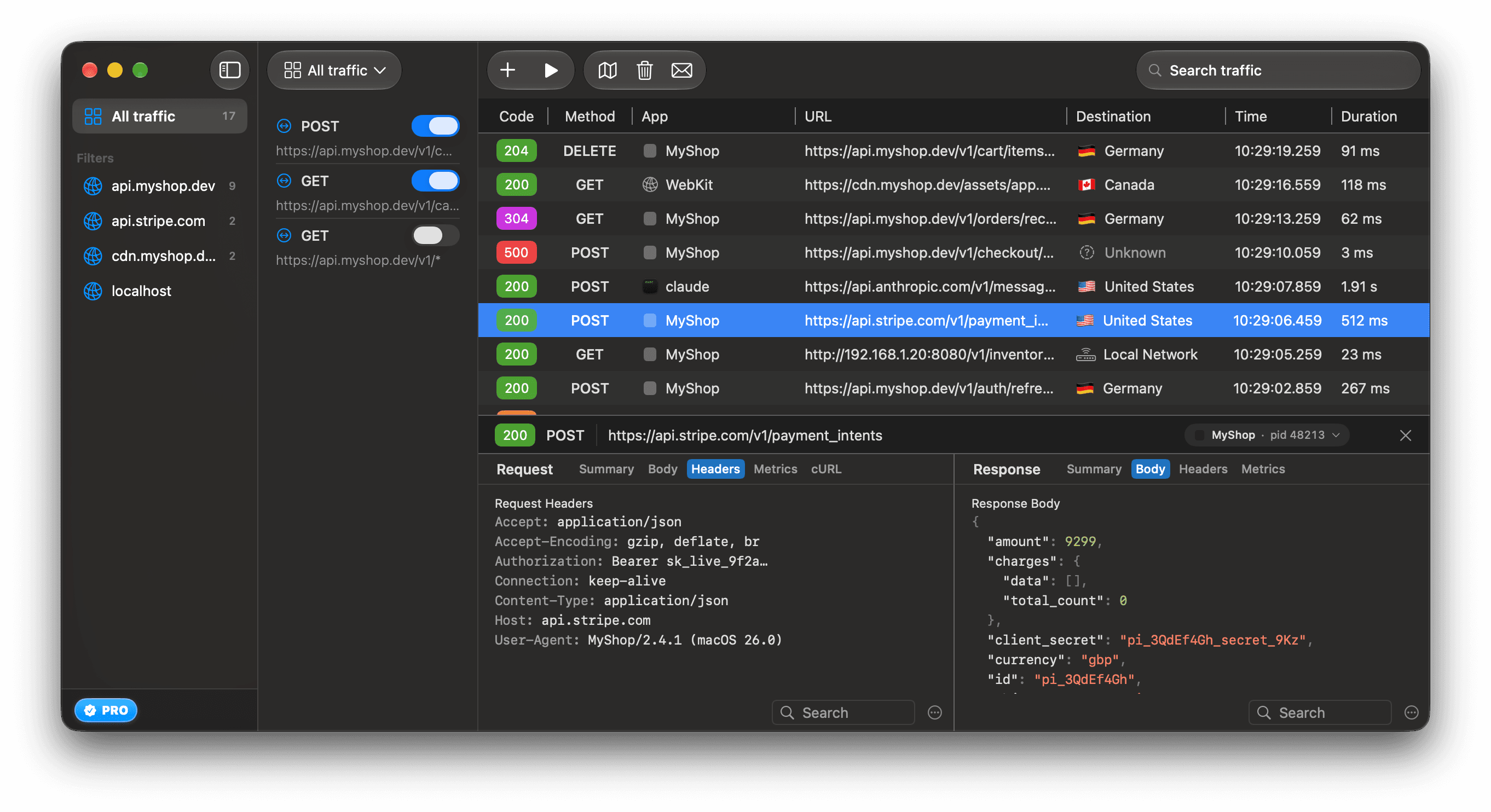
In the app, Help ▸ ReqRes Help (⌘?) opens 11 short topics.
Start here
- Install ReqRes and move it to your Applications folder.
- Set up capture by approving the network extension in System Settings.
- Trust the ReqRes certificate so ReqRes can read HTTPS.
- Connect an AI agent if you want one to read and change your traffic.
All sections
Get started
- Install ReqRes
Download the ReqRes disk image, move the app to Applications, and choose the free version or activate a Pro license on first launch.
- Set up capture
Approve the ReqRes network extension and VPN configuration in System Settings so ReqRes can start capturing traffic on your Mac.
- Trust the ReqRes certificate
Install and trust the ReqRes CA so ReqRes can read HTTPS, see what it relays until then, and remove or replace the certificate when you need to.
- Start and stop capture
Start and stop capture from the toolbar, the Capture menu or the menu bar, and know what keeps running when you close the ReqRes window.
- Capture command-line tools and agents
Route curl, git, the Claude Code CLI, node, Python and Go traffic through ReqRes by exporting the certificate and pasting a few environment lines.
- Change the proxy port
Move the ReqRes proxy off port 8034, choose another port when a program already holds it, and copy the environment lines again for your terminals.
Inspect traffic
- Read the traffic list
Read the traffic list's columns and kinds of row, resize its columns, act on requests from the row menu, and know how many requests ReqRes keeps.
- Inspect a request
Read the headers, body, timings and cURL command of a captured request and its response, and the Events, Messages and RPC tabs some responses add.
- Capture HTTP/2 and gRPC
Turn on the HTTP/2 beta, see which protocol a request used, and read gRPC-Web, Connect and native gRPC calls with their messages and status.
- Read WebSocket messages
Read the messages a WebSocket sends and receives in the Messages tab, search them, and see how many ReqRes keeps for each connection.
- Read streaming responses
Watch a slow or streaming request while it is still open, read server-sent events and JSON lines in the Events tab, and read an LLM answer whole.
- See why a request failed
Read Failed, Aborted and Timed out rows, the reason in one sentence and the 502 ReqRes answers with, and find them with the outcome: token.
- See which app sent a request
See which app or process opened each connection in the App column, and filter traffic to one app or one process ID.
- Search and filter traffic
Search captured traffic by text, or narrow it with tokens for host, method, status, path, app, pid, country, outcome, gRPC status and protocol.
- Add a host filter
Give a host its own entry in the sidebar with a host filter, which also scopes the rules you create for that host.
- Save a session
Keep a request after you quit, find it again in the Saved Sessions window, and know where ReqRes stores it on disk.
- See where requests go
See on a map which countries your captured requests went to, and filter the traffic list by country or destination.
Change traffic
- Change requests and responses with rules
Mock a response, add request headers, or answer from a local file with a rule in Extend, Override or Map Local mode on a host filter.
- Write a URL pattern that matches
Write a rule path that matches, test it against a real URL before you save, and avoid the 4 patterns that never fire.
- Hold a request with a breakpoint
Hold a matching HTTPS or plain HTTP request before it reaches the server. Send it on, edit it or fail it with a status, or let a connected agent answer it.
- Pass a host through untouched
Pass a host's HTTPS and plain HTTP traffic through without decrypting or recording it, for code signing, mTLS servers and apps that pin certificates.
- Keep SSL-pinned apps working
ReqRes relays apps that pin their certificates, and the Apple services macOS pins, so they work while you capture. Forget a pin to decrypt it again.
AI agents
- Connect an AI agent
Connect Claude Code, Claude Desktop, Cursor, Windsurf or another stdio MCP client to ReqRes, and check that the connection works.
- MCP tools
Every ReqRes MCP tool, with what it does, its main arguments and limits, and whether ReqRes asks you before it runs.
- Approve agent changes
How ReqRes asks you before an agent changes rules, host filters or capture, what each kind of change means, and how to allow a session.
- Control what agents see
What ReqRes redacts before captured traffic reaches an agent, how to send one host unmasked, and where the real values still exist.
- Review and undo agent changes
Review every change an agent asked for in the activity log, undo rule, host filter and exclusion changes, and export the log to a file.
- Debug with an agent
Recipes for common agent jobs with ReqRes, such as reproducing a bug, mocking an error, comparing 2 requests and keeping the evidence.
Troubleshooting
- Run Diagnose Setup
Run Diagnose Setup from the Capture menu to find the first thing that stops capture, and learn what each check means and what to do.
- Fix missing traffic
Find out why a request or an app is missing from ReqRes, or why HTTPS shows only connections, from setup and filters to tools that skip the proxy.
- Fix HTTPS and certificate errors
Fix HTTPS problems while ReqRes captures, from an untrusted certificate and codesign timestamp errors to pinned apps and node errors.
- Fix a rule or breakpoint that never fires or holds too much
Find out why a rule never fires or changes a status it should keep, why a breakpoint holds nothing or too much, and what to do when a page hangs.
- Fix agent errors, missing agent traffic and the App column
Fix an agent that cannot reach ReqRes, has its token rejected, is refused a change, or does not see its own requests in the traffic list.
Reference
- Keyboard shortcuts
Every keyboard shortcut in ReqRes, for capture, host filters, rules, search, the traffic list, saved sessions, Destinations and sheets.
- Menus and the menu bar item
What each ReqRes menu contains, what the menu bar icon shows while capturing or holding requests, and how to hide the icon.
- Settings
What each tab of ReqRes Settings controls, from General and Capture to MCP, Storage and Breakpoints, with every option on the General tab.
- Free version and Pro
What the free version of ReqRes includes, the 3 limits Pro removes, and what a Pro license covers (pay once, 2 Macs, every 1.x update).
- Move your license to another Mac
Free a place on your ReqRes license from the license page, let an idle Mac release itself, get your key again by email, and what the online check does.
- Data and privacy
What ReqRes keeps on your Mac, what it writes to disk, and what leaves your Mac, from map tiles to license checks.
- Supported protocols
What ReqRes 1.1 captures for each protocol, from HTTPS, plain HTTP and WebSocket to HTTP/2, gRPC and streams, and what it only relays or never sees.
- What's new in 1.1
What changed in ReqRes 1.1, from an MCP server for AI agents and HTTP/2, gRPC and WebSocket messages to failed-request rows and a certificate per install.
What's new in 1.1
- An MCP server with 33 tools (18 read, 15 change), so an AI agent can read captured traffic and make changes. Approvals and redaction control what it may change and see. See Connect an AI agent.
- Breakpoints, which hold a matching HTTPS or plain
http://request for up to 60 s so you can resume it, edit it or abort it. See Hold a request with a breakpoint. - Capture of command-line tools, with an exported certificate and environment lines. See Capture command-line tools and agents.
- WebSocket messages, streaming responses and gRPC calls, read in their own tabs. HTTP/2 and native gRPC capture are in beta and off by default. See Read WebSocket messages, Read streaming responses and Capture HTTP/2 and gRPC.
- Rows for requests that failed, with the reason, and for apps that pin their certificates. See See why a request failed and Keep SSL-pinned apps working.
- Search tokens such as
host:,app:andcountry:, and an App column that names the app behind each request. See Search and filter traffic. - A certificate created on your Mac for this installation, and a proxy port you can change.
- Saved sessions, the Destinations map and excluded hosts.
- The Capture ▸ Diagnose Setup… command, a menu bar item and the in-app Help.
The full list is in What's new in 1.1.