
Inspect traffic
New in 1.1
See which app sent a request
On this page
The App column names the process that opened each request's connection. Use it to tell your own app's requests from a browser's, or to follow one command-line process.
The App column
Each row shows the app's icon and name in the App column.
- Hover the name to see the process ID (pid) and the app's path on disk.
- The inspector header shows the same app and pid in a pill. Its menu has the filters below, plus Show in Finder and Copy path.
- The request's Summary tab lists the process name, its pid and its path. See Inspect a request.
- A helper process shows under its app's name. Brave Browser Helper appears as Brave Browser, and the tooltip names the helper and its full path.
- Requests from an AI agent connected to ReqRes carry a small ✦ on the app icon.
Filter to an app or a process
Use any of these:
- Right-click a request and choose Show only requests from app or Show only this process (pid N).
- Click the app pill in the inspector header and choose the same items.
- Type
app:orpid:in the search field, then a value, then press Return.
The two tokens match differently:
| Token | Matches | Example |
|---|---|---|
app: | Part of the app name, in any case. | app:claude matches Claude Desktop and the Claude Code CLI, which appears as claude.exe. |
app:unknown | Requests ReqRes could not attribute. Only the full word works. | app:unknown |
pid: | One process ID, exactly. Digits only. | pid:48213 |
After app:, the suggestions list each app, with a count such as "2 processes" when it used more than 1. After pid:, they list process IDs. With an app: token already in the field, they list only that app's processes.
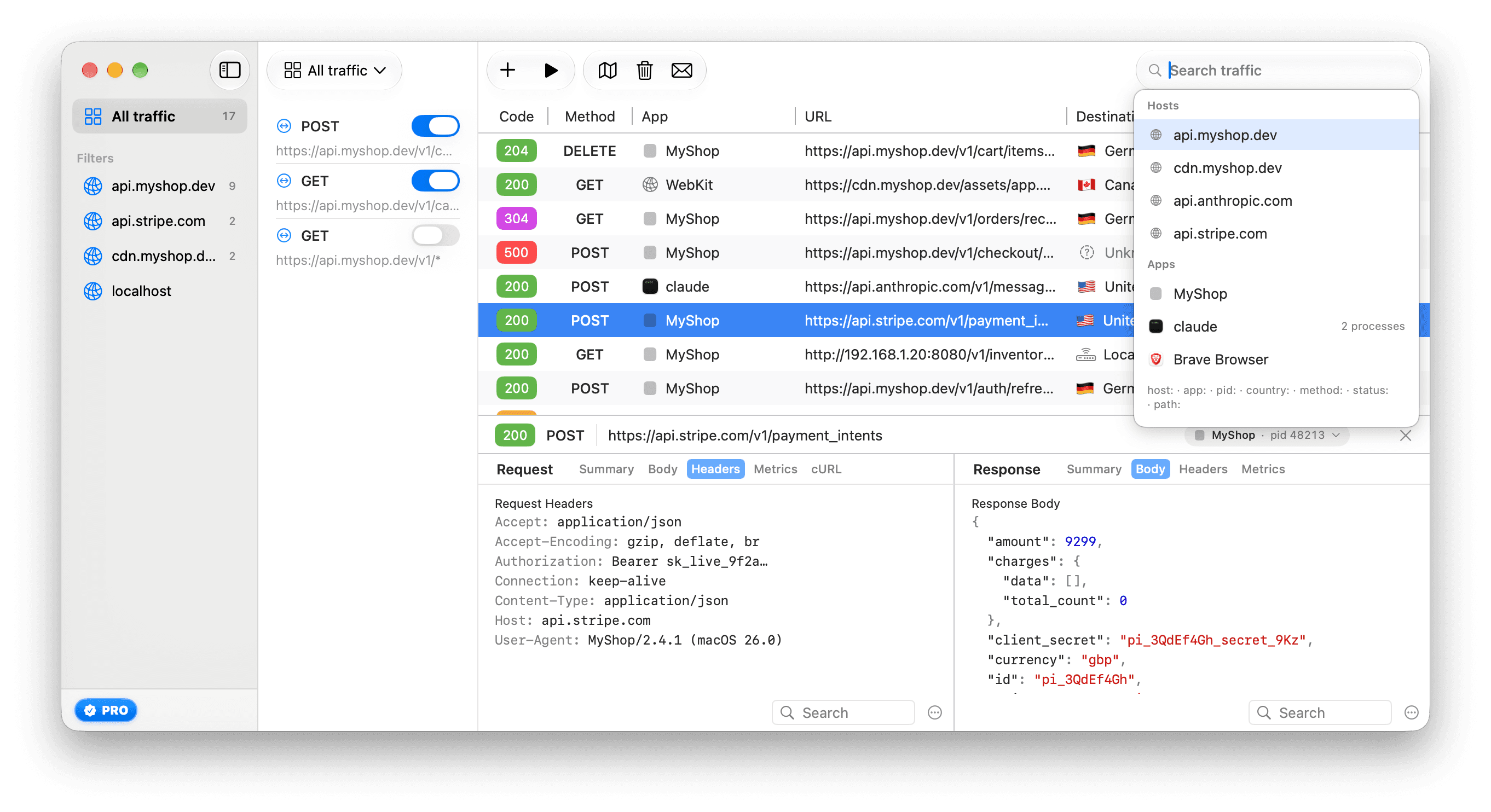
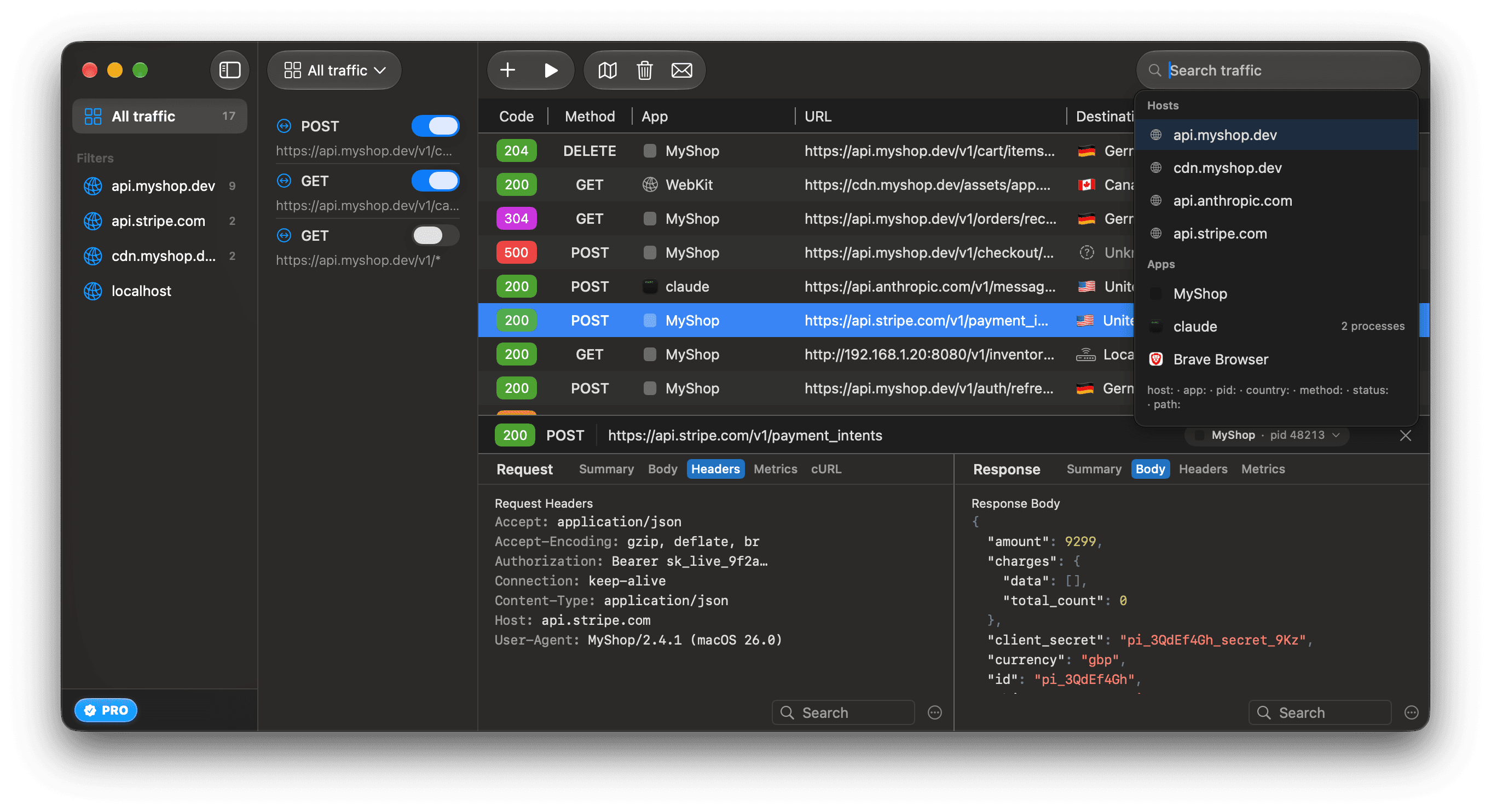
To see an AI agent's traffic, click ✦ at the bottom of the sidebar, then click Show its traffic beside the agent's name. If ReqRes has captured nothing from that agent, the button is dimmed. Its tooltip says why, for example: "No captured requests from Claude Code yet. A command-line agent needs the environment in Settings ▸ Capture." See Capture command-line tools and agents.
Search and filter traffic covers the other tokens and how they combine.
Why a name can surprise you
Requests share a name. ReqRes attributes each connection once. Several requests can share one keep-alive connection, so they all name the app that opened it.
Safari shows as WebKit. Safari's networking runs in a system process that all WebKit apps share. ReqRes names the process it sees, so Safari's requests appear as WebKit. The Summary tab shows the process name, com.apple.WebKit.Networking.
Background means macOS made the request. Downloads and uploads that an app hands to macOS run in the nsurlsessiond process. ReqRes shows them as Background. The Summary tab shows nsurlsessiond.
Unknown means ReqRes could not tell. The connection had already closed when ReqRes looked, or its process could not be named. ReqRes does not guess: "Nothing is inferred from headers."
Some apps are not listed at all. An app that never reaches ReqRes is absent, not Unknown. That includes curl and git, Apple's included, and other tools that ignore the system proxy, traffic over QUIC, and processes inside a Docker container that you have not set up for ReqRes. Capture command-line tools and agents shows how to route a command-line tool or a Docker container through ReqRes. Requests to a host on the exclusion list get no row either. See Pass a host through untouched.
A pinned app is listed as connections. An app that checks its servers' certificates itself still appears: its first refused request is a Failed row, and its later connections are rows marked "SSL pinned by" and its name. Each row is a whole connection that ReqRes passed on without reading. See Keep SSL-pinned apps working.
When the column is missing
ReqRes reads which process owns each connection from the kernel's socket table. Each time capture starts, it checks that reading against its own connection.
If the check fails, most likely after a macOS update, ReqRes hides the App column instead of showing guesses. Capture still works.
- Capture ▸ Diagnose Setup… says that attribution is unavailable. See Run Diagnose Setup.
- In the search field,
app:andpid:show "Not available on this Mac — Capture ▸ Diagnose Setup… explains." - Use Send feedback in the toolbar to report it, with your macOS version.