
Troubleshooting
Fix missing traffic
On this page
Work through these sections in order when a request, an app or all traffic is missing from ReqRes. To check setup in one step, run Diagnose Setup.
Capture is not running
Installing the network extension and starting capture are separate steps. ReqRes does not start capture when it opens, including when it opens at login.
While capture runs, the Capture menu shows Stop Capturing, and the capture button in the toolbar shows a pause symbol.
To start capture, press ⌘⇧C or choose Capture ▸ Start Capturing. If the capture button keeps showing a spinner, with the tooltip "Starting capture…", run Capture ▸ Diagnose Setup….
If another program holds the proxy port, capture does not start and ReqRes shows an alert. See The proxy port is busy.
If an alert titled "Capture did not start" appears instead, its message says why and what to do. Either the capture extension refused to start, or ReqRes could not open 127.0.0.1:50001, where the extension delivers what it captures, because another copy of ReqRes or another program holds it.
ReqRes quit while capturing
If ReqRes quits unexpectedly while capture runs, after a crash or a Force Quit, capture keeps running without it. Open ReqRes again. It shows capture as on and reconnects to it, usually within a few seconds. Until then, an empty traffic list reads "Reconnecting to the running capture…", and so does the first line of the menu bar menu.
When ReqRes reconnects, it lists the requests captured while it was closed. If there were more than the capture extension could keep, the most recent ones are listed. A line above the list says how many, for example "4 requests were captured while ReqRes was closed." When some were not kept, the line also says how many earlier ones. Click the × at the end of the line to dismiss it.
ReqRes cannot reconnect to a capture that was started from System Settings, or that runs an extension from an earlier ReqRes build. It then restarts capture once by itself and says why in the same line, for example "The running capture was from an earlier ReqRes build, so ReqRes restarted it."
If the list shows "Capture is on, but ReqRes isn't receiving it", ReqRes could not get the capture back by itself. The notice says why. Click Restart Capture there, or in the menu bar menu. It stops capture and starts it again from this window, so the extension connects to it.
While ReqRes reconnects, or shows that notice, breakpoints hold nothing. See A breakpoint never fires.
If 2 copies of ReqRes are open, the copy that does not hold the capture's connection receives nothing new and shows "Another copy of ReqRes holds this capture's connection". Look in the other copy's window. If it is not receiving either, click Restart Capture there. To capture in this copy instead, quit the other one, which stops its capture, then start capture here.
When you quit ReqRes yourself, it asks first and stops capture, so there is nothing to reconnect to.
The setup screen is still showing
If the main window shows a setup checklist instead of traffic, macOS has not finished approving the extension. The screen's title names the step you are on:
| Title | What to do |
|---|---|
| "Set up traffic capture" | Click Install Network Extension, then allow it when macOS asks. |
| "Enable ReqRes in System Settings" | Click Open Network Extensions. Click the ⓘ button next to Network Extensions, switch ReqRes on, then click Done. |
| "Restart ReqRes to finish" | Click Restart ReqRes. |
| "Allow the VPN configuration" | Click Install VPN Configuration, then choose Allow. |
The screen updates by itself while you work in System Settings. ReqRes must run from /Applications, or macOS does not activate the extension. See Set up capture.
HTTPS shows only connections
Until the ReqRes certificate is installed and trusted, ReqRes relays HTTPS without decrypting it. Each connection is one row, written when it closes. The row shows the host and port, "not decrypted", and the bytes sent each way. There are no requests, URLs, headers or bodies.
Plain HTTP is not affected, and opening such a row never uses a free HTTPS inspection. Install and trust the certificate in Settings ▸ Certificate. See HTTPS rows say "not decrypted".
Rows marked "SSL pinned" are relayed on purpose, even with the certificate trusted. See An app pins its certificates.
If the rows are decrypted but the detail pane shows "No Free HTTPS Inspections Left", the free version's 10 HTTPS inspections for this launch are used up. See The free limit.
A host filter, search or setting hides it
- Select All traffic in the sidebar. A host filter shows only requests to its own host.
- Clear the search field. A token such as
host:orapp:stays until you remove it. - Turn on Settings ▸ Capture ▸ Show cancelled requests if the app may have cancelled the request itself. Browsers cancel requests all the time, so ReqRes hides them by default.
- Look for the request again.
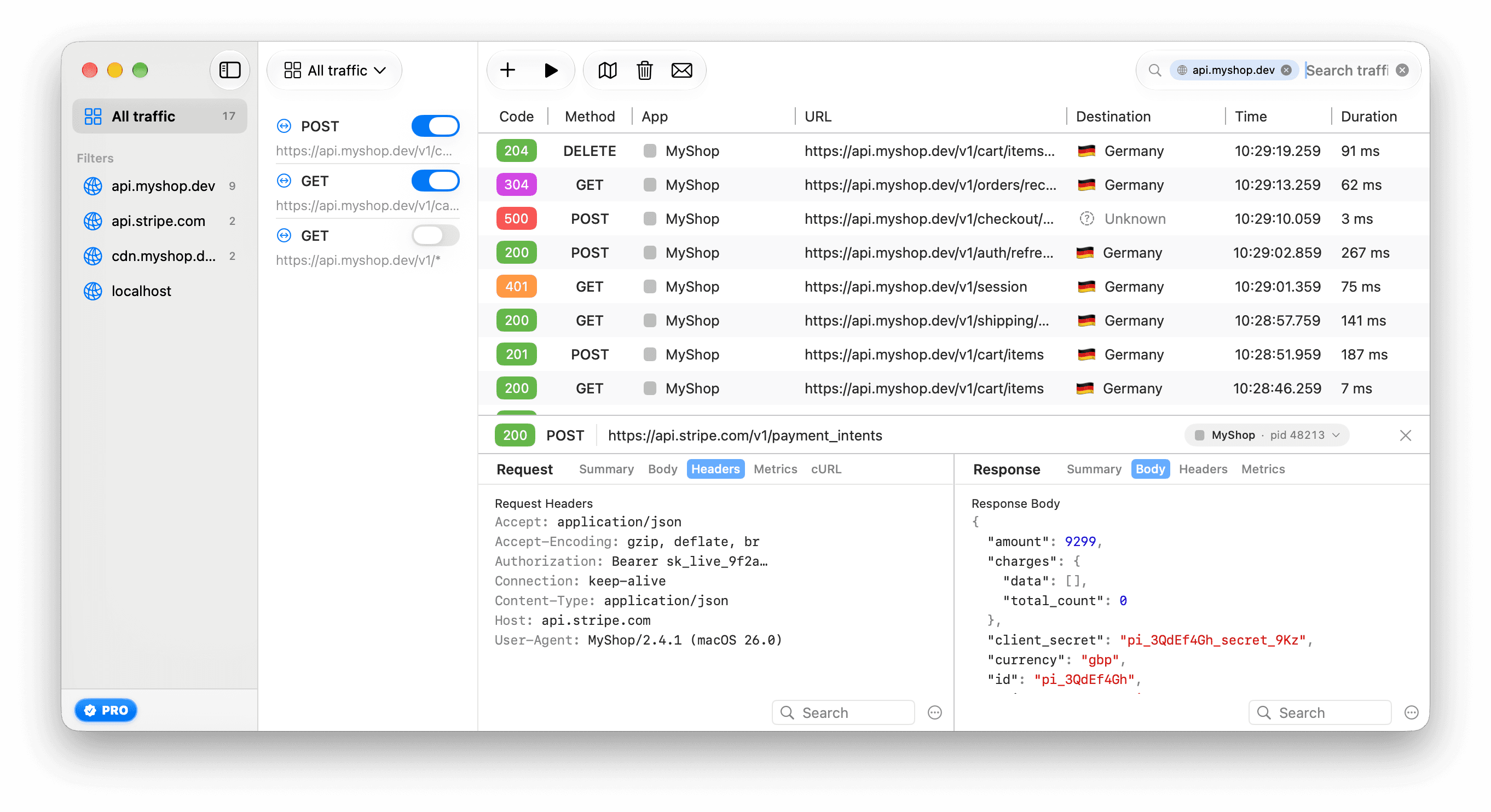
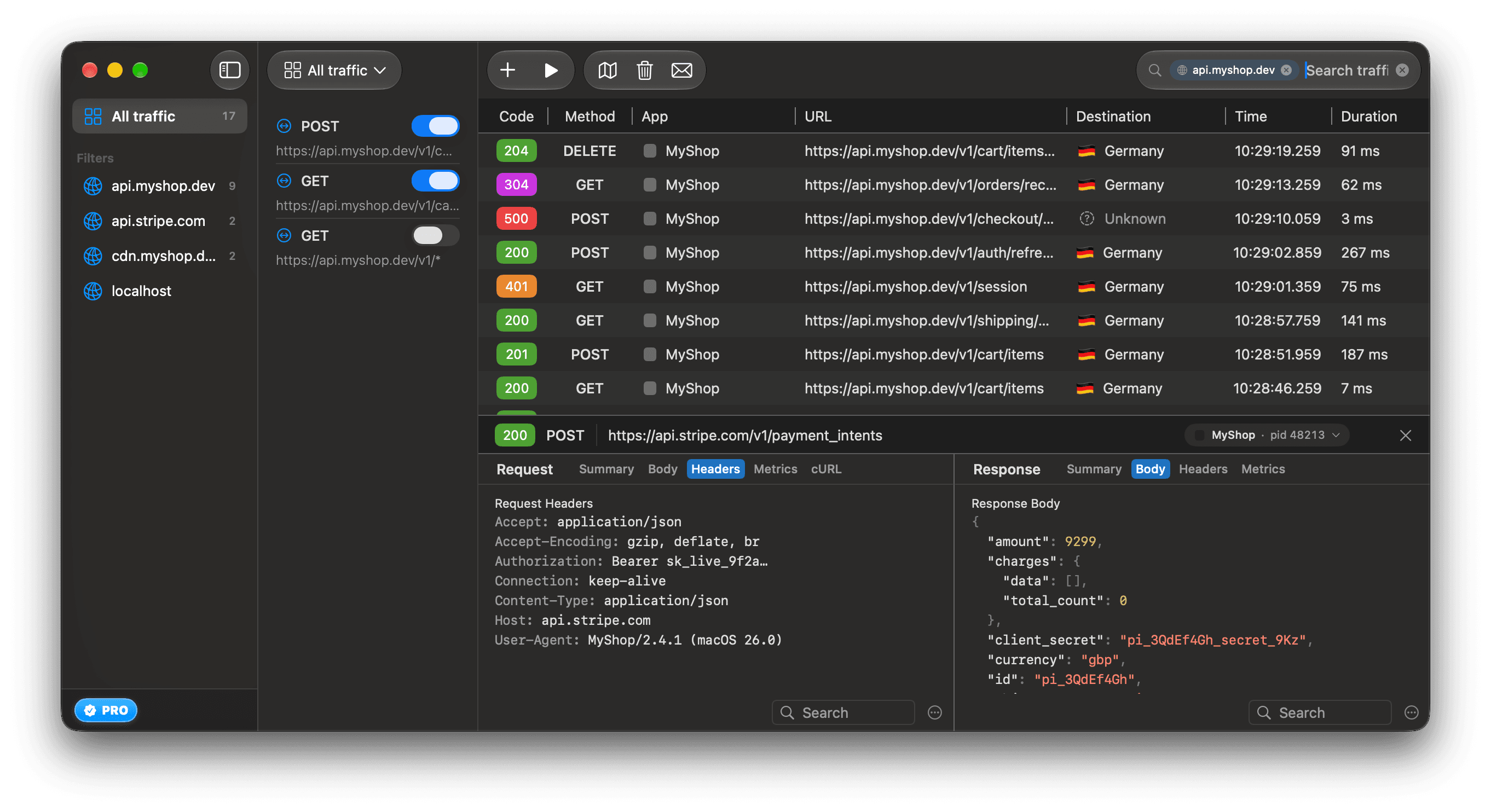
A request that failed, was aborted or timed out is still a row. Type outcome:failed, outcome:aborted or outcome:timed_out in the search field to see only those. See See why a request failed.
ReqRes keeps the 5,000 most recent requests, and quitting clears them. An older request may be gone. See How much ReqRes keeps.
A terminal tool, Docker, Go or a QUIC app is missing
Capture publishes proxy settings for the whole Mac. Apps that read them reach ReqRes without setup. These programs ignore them, so they are not in the list at all, not even as Unknown:
- curl and git, Apple's included;
- the Claude Code CLI and most node HTTP libraries;
- processes inside Docker containers (Docker Desktop itself follows the system proxy);
- Go and Rust programs;
- apps that talk over QUIC (HTTP/3).
For all but QUIC, set the proxy variables in the terminal that starts the tool:
- Open Settings ▸ Capture.
- Under Capture a command-line tool, click Export CA Certificate… and save the file.
- Click Copy above the Environment block.
- Paste the lines into the terminal, then start the tool from that terminal. A tool that was already running does not see them.
node's own fetch also needs NODE_USE_ENV_PROXY=1, which the lines include. Go needs only the proxy lines once the CA is trusted in Settings ▸ Certificate, because it verifies certificates through the keychain. Inside a Docker container, point the proxy at host.docker.internal and the proxy port. See Capture command-line tools and agents.
The lines carry the port set in Settings ▸ Capture ▸ Proxy port, 8034 by default. After you change the port, copy the lines again. The lines work only while capture runs. With capture stopped, the proxy refuses connections, and requests from that terminal fail, except those to local addresses. Unset the lines, or open a new terminal, when you stop capture.
QUIC runs over UDP and never reaches the proxy. Browsers use it only with sites that offer it, and fall back to TCP when it fails, so a site can show some of its requests and not others. To see all of them, turn QUIC off while you debug. In Chrome, Brave and Edge, set chrome://flags/#enable-quic to Disabled and relaunch.
Requests to a local server are missing
Browsers and Electron apps never send localhost, 127.0.0.1 or ::1 to a proxy, and most apps built on Apple's networking skip them too. So http://localhost:3000 opened in a browser is not listed.
The copied lines set NO_PROXY and no_proxy to localhost,127.0.0.1,::1, so requests from that terminal to a local server skip ReqRes too. HTTPS to a local server, such as https://localhost:8443, skips it as well.
ReqRes captures plain HTTP on any port. To include a local server, do one of these:
-
Run this in the terminal that has the lines, then send the request again:
Terminalunset NO_PROXY no_proxy -
Send the request through the proxy yourself:
Terminalcurl --noproxy '' -x http://127.0.0.1:8034 http://localhost:3000/ -
Reach the server by the Mac's network name instead of
localhost.
export NO_PROXY=… replaces any NO_PROXY your shell already had. If you rely on one, add its hosts to the copied line before you run it.
One app is missing
If other apps appear but one does not, check these in order:
- Search by the name ReqRes shows. Safari's requests appear as WebKit, and downloads an app hands to the system appear as Background. Search
app:webkitto find Safari's requests. - Check whether the app reads the system proxy. If
app:finds nothing, the list shows "No Requests Found" and an Open Capture Settings button. Set the app up like a terminal tool. - Check Settings ▸ Capture ▸ Excluded from interception. An excluded host is not recorded, over
https://andhttp://alike, so its requests never appear. See Pass a host through untouched. - Check whether the app pins its certificate. Its first request fails and shows as one Failed row. Its later connections are relayed as rows marked with its name, such as "SSL pinned by WhatsApp". See Keep SSL-pinned apps working.
- Check whether the app uses native gRPC or speaks only HTTP/2. Both fail through ReqRes while Capture HTTP/2 (beta) is off in Settings ▸ Capture. Most gRPC libraries also ignore the system proxy, so set them up like a terminal tool. See Capture HTTP/2 and gRPC.
- Check whether the app uses QUIC. ReqRes cannot capture it.
If the App column is missing, app: matches nothing. See The App column is missing.
The proxy port is busy
Capture does not start. ReqRes shows an alert titled "Port 8034 is in use". It names the program that holds the port when it can, for example:
Python is listening on 127.0.0.1:8034, where ReqRes's proxy runs, so capture did not start. Use port 8035 instead? Command-line tools set up with the environment lines will need the new lines.Do one of these:
- Click Use Port 8035. ReqRes saves the new port and starts capture on it. Copy the environment lines again in any terminal that uses them.
- Click Cancel, quit the program that holds the port, and start capture again.
If no nearby port is free, the alert offers only Cancel and says to choose another port in Settings ▸ Capture.
To choose the port yourself, see Change the proxy port.
Rarely, capture reports that it is on while nothing listens on the port. Diagnose Setup then reports Proxy port: "Capture says it is on, but nothing is listening on 127.0.0.1:8034 — the proxy could not bind its port." Stop capture, quit anything else using that port, and start capture again.