
Reference
Settings
On this page
ReqRes Settings has 7 tabs. This page covers every option on the General tab. For each other tab, it says what the tab holds and which page covers it.
To open Settings, choose ReqRes ▸ Settings… or press ⌘,. The menu bar menu has Settings… as well.
General
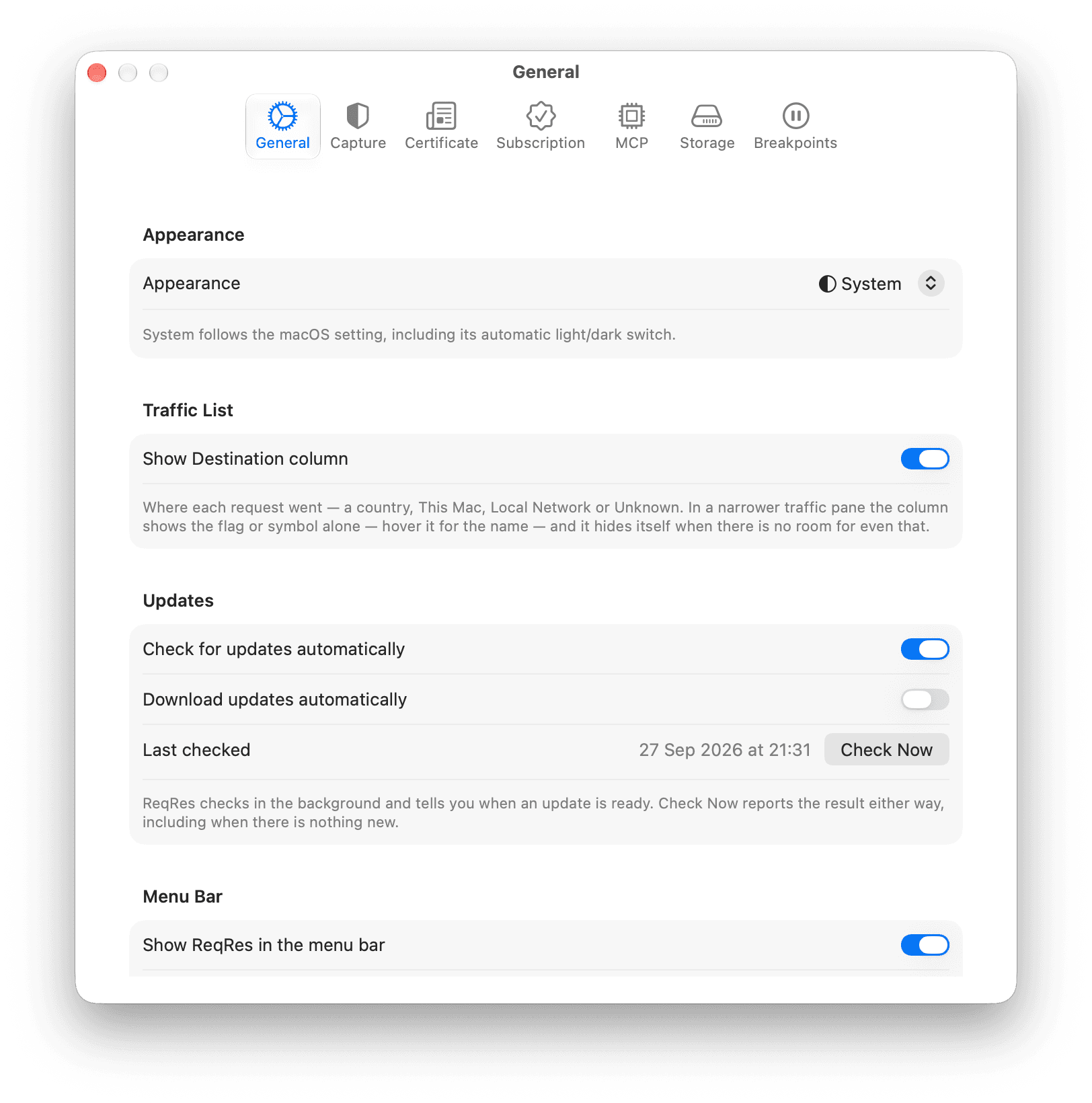
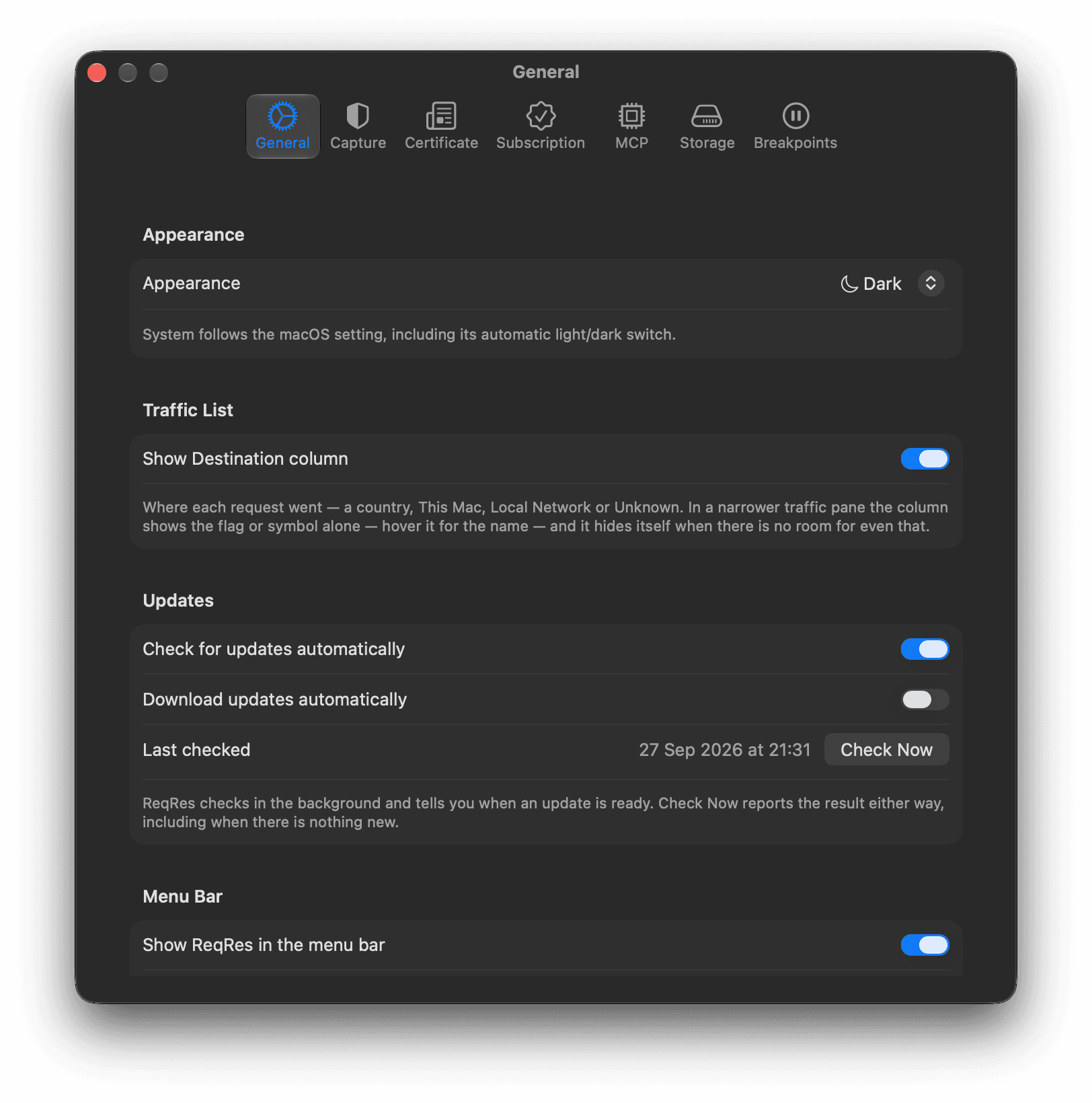
Appearance
Appearance sets the app to System, Light or Dark. System follows the macOS setting, including its automatic switch between light and dark.
Traffic List
Show Destination column adds a column that shows where each request went: a country, This Mac, Local Network or Unknown. It is on by default.
In a narrow traffic pane the column shows only the flag or symbol. It hides when there is no room even for that. See where requests go explains what each value means.
Updates
- Check for updates automatically: ReqRes checks in the background and tells you when an update is ready. It is on by default.
- Download updates automatically: available only while automatic checks are on.
- Last checked shows when ReqRes last checked. Check Now checks at once and reports the result, including when there is nothing new.
ReqRes ▸ Check for Updates... runs the same check.
Menu Bar
Show ReqRes in the menu bar shows the ReqRes icon in the menu bar. It is on by default. The icon shows whether capture is running, and its menu stops capture. See Menus and the menu bar item.
Startup
Open ReqRes at login opens ReqRes when you log in to your Mac. "Opening at login does not start capture — ReqRes waits for you to start it."
If macOS wants your approval first, the tab says "Waiting for your approval in System Settings ▸ General ▸ Login Items." Click Open Login Items and allow ReqRes there.
Privacy
Share crash and performance reports is on by default. It sends crash reports and a 10% sample of performance traces to Sentry, the crash reporting service ReqRes uses. The reports contain no captured traffic.
When you turn it off, ReqRes stops reporting at once. The capture extension stops the next time capture starts. See Data and privacy.
Confirmations
ReqRes asks before it deletes a host filter or a rule, and before it clears captured traffic. Each of these dialogs has a Don't ask again checkbox.
Reset All Warnings brings back every dialog you turned off. It is dimmed when none is turned off.
Capture
The Capture tab has 9 sections:
- Capture a command-line tool: which tools need the environment lines, such as curl, git, the Claude Code CLI, node and Go programs, with Export CA Certificate… and the lines to paste. If the file you exported holds an older certificate, the CA certificate row names the file and says "holds an older CA — export again". The Environment block holds the commands only, and Copy copies exactly what it shows. What each line is for is written under it. See Capture command-line tools and agents.
- Proxy port: the port on
127.0.0.1where the ReqRes proxy listens, 8034 by default, with Apply, and Use 8034 when you chose another port. A new port applies the next time capture starts. While capture runs on the old port, the section says so and offers Restart Capture. See Change the proxy port. - HTTP/2: the Capture HTTP/2 (beta) switch, off by default. It applies to connections opened after the change. See Capture HTTP/2 and gRPC.
- Excluded from interception: the hosts ReqRes passes through without decrypting or recording them, over HTTPS and plain
http://. No rule or breakpoint applies to them.reqresapp.comand*.reqresapp.com, ReqRes's license server, are always excluded: they are listed first, with a lock, and cannot be removed. Asking an agent to exclude them changes nothing. See Pass a host through untouched. - SSL-pinned apps: the apps that refused the ReqRes certificate, each with the domain ReqRes now passes through for it. Forget removes one and Forget All removes them all. With none, it says "No app has refused ReqRes's certificate yet." See Keep SSL-pinned apps working.
- Requests that did not complete: what Failed, Aborted and Timed out rows are, and the Show cancelled requests switch. It is off by default, which hides the requests an app cancels itself. See See why a request failed.
- Destinations: where the country table comes from, and your approximate location. See where requests go covers the Destinations window.
- What this means: how an excluded host behaves.
- What capture changes, keeps and closes: that ReqRes adds no headers of its own, when it closes a quiet connection, how much of each body it keeps, and what it records before the certificate is trusted. See Supported protocols.
Certificate
The Certificate tab has 2 sections:
- ReqRes CA: the Keychain row shows Installed or Not installed, with Install CA certificate. The Trust row shows Trusted or Not trusted, with Trust. Below them are the certificate's SHA-256 fingerprint, one line that says what capture does with HTTPS right now, and Certificate Details….
- Where its private key is: where ReqRes keeps the key, and how to remove the certificate when you stop using ReqRes. The ? button at the bottom opens About the ReqRes Certificate, with the certificate's details and the steps to remove it by hand.
While an older "ReqRes CA" is still in your keychain, the tab opens with a banner and a Replace Old Certificate button.
Certificate ▸ Install CA Certificate... opens this tab. See Trust the ReqRes certificate.
License
Without a license, the tab shows the ReqRes Pro card marked Free Version and a License key field with Activate. Below them are the 3 limits Pro lifts, the $60 price with Buy a License, a few facts about checkout and refunds, and links to the license agreement, the terms of service and the privacy policy. With a license, the card is marked Active. The tab shows how many Macs use the license next to Macs in use, for example "1 of 2", and for a license with no end date, Term. Under Macs are Deactivate this Mac… and Manage your Macs…. A license is bought once and covers 1 person on up to 2 Macs, with every 1.x update included. ReqRes 1.0 calls this tab Subscription. See Free version and Pro and Move your license to another Mac.
MCP
The MCP tab controls the MCP server that AI agents connect to. It has Server Status, the Enable the AI bridge switch with the configuration to copy, Setup Instructions, Approval, Redaction, Activity and About MCP. Enable the AI bridge is on by default.
- To connect an agent, see Connect an AI agent.
- For Approval, see Approve agent changes. With Ask before an agent changes rules, hosts or capture turned off, agents change ReqRes at once, except for excluding a host and replaying a request, which always ask.
- For Redaction, see Control what agents see.
- For Activity, see Review and undo agent changes.
Storage
The Storage tab shows how many sessions you saved and their size, and has Delete All Saved Sessions…. Under Where it is kept it shows the database file, with Show in Finder. Saved sessions keep real, unmasked values. See Save a session.
Breakpoints
The Breakpoints tab shows how many breakpoints are armed, with Turn All Off. Under Rules you add a breakpoint by host, path and method. Under Agents, Let agents answer held requests is off by default. The tab says "Breakpoints hold HTTPS and plain http:// requests alike." See Hold a request with a breakpoint.