
Change traffic
Change requests and responses with rules
On this page
A rule changes the requests it matches and the responses that come back. Use one to return an error on demand, add a header to your own requests, or answer with a file from your Mac.
Scope a rule to a host filter
Each rule belongs to one host filter. It applies to requests whose Host header names that host, over HTTPS and plain http:// alike. ReqRes ignores the port and letter case when it compares, so a rule on api.example.com also applies to api.example.com:8443.
All traffic is a view of everything captured, not a host filter, so it cannot hold a rule. If you start a rule with All traffic selected, the sheet stays locked and reads:
"Overrides apply to one host. Select a host filter in the sidebar — or add one with + — and create the override there."
To add the host first, see Add a host filter.
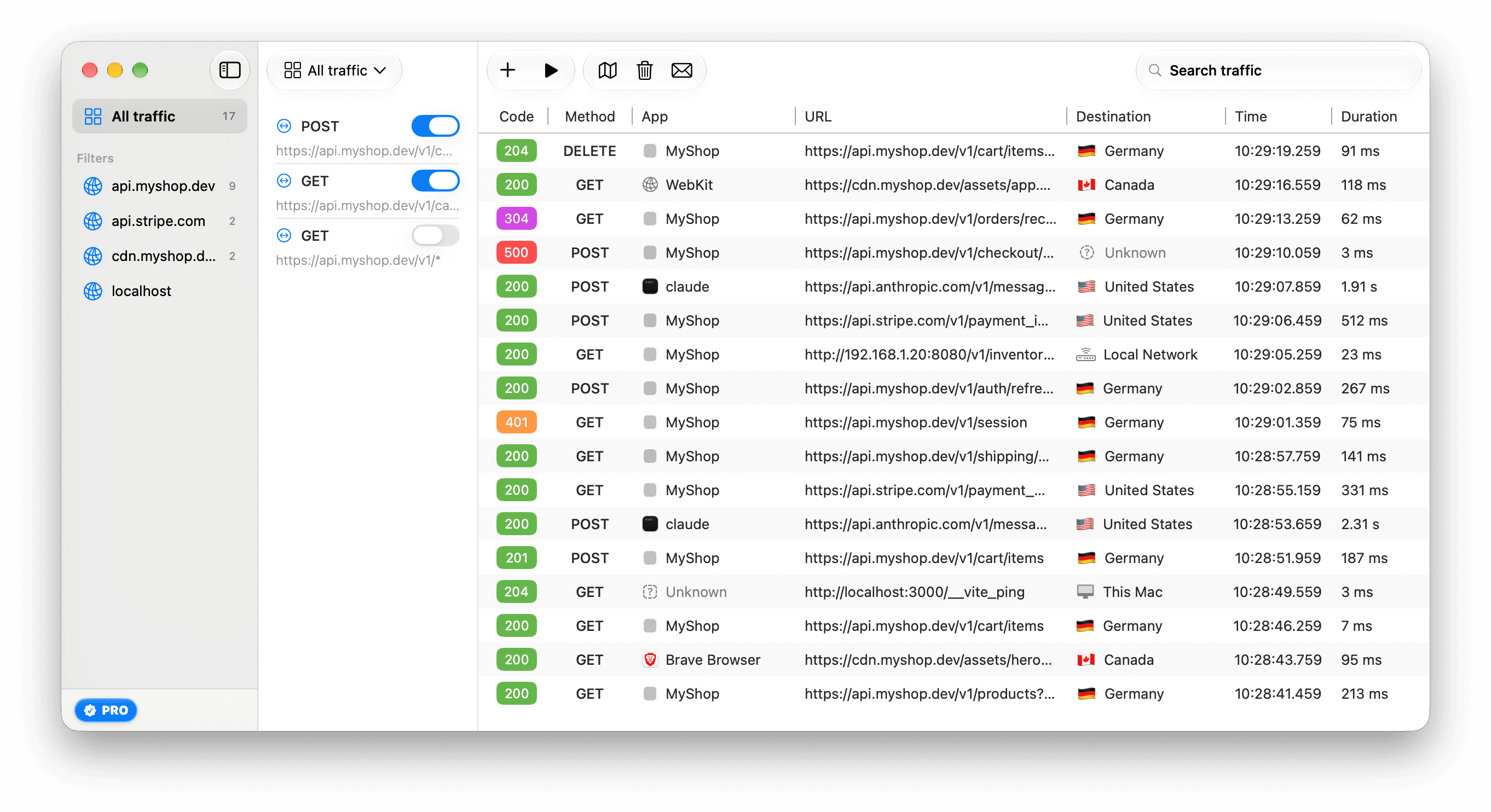
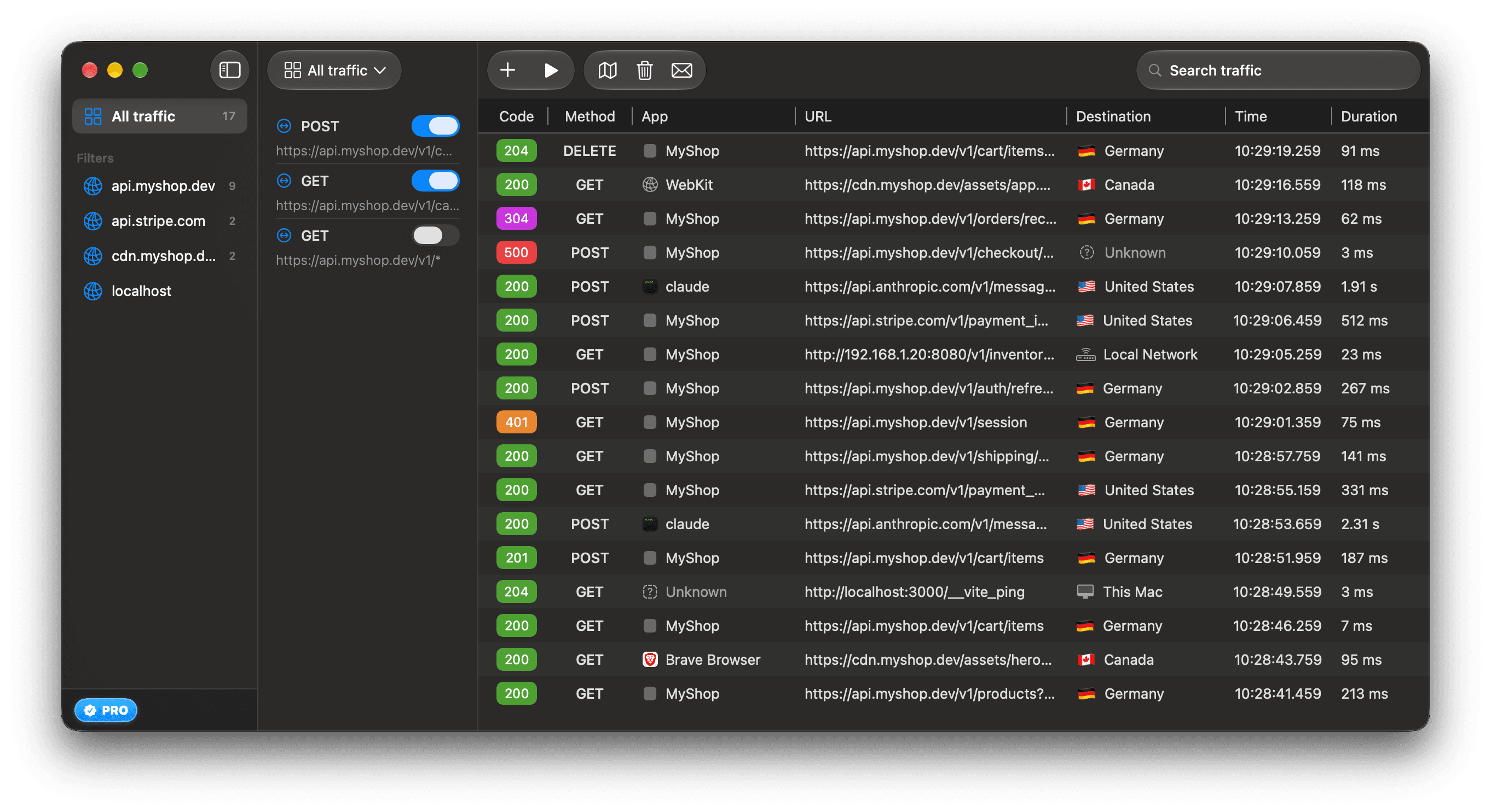
- The rules pane, between the sidebar and the traffic list, shows the rules of the selected host filter. With All traffic selected, it shows all rules, each with its host.
- A rule that is switched on applies while capture runs, whatever the sidebar has selected.
- If more than 1 enabled rule matches a request, only the first one in ReqRes's stored order applies.
- No rule applies to an excluded host, to HTTPS before the ReqRes certificate is trusted, or to a connection ReqRes relays because it is SSL pinned. ReqRes does not read any of them. See Pass a host through untouched, Trust the ReqRes certificate and Keep SSL-pinned apps working.
Choose a mode
The Mode control offers Extend, Override and Map Local. A new rule starts in Extend.
| Mode | Does the request reach the server? | What the app receives |
|---|---|---|
| Extend | Yes, with the rule's request headers set on top of the app's. | The server's response, with the rule's response headers set over the server's. It keeps the server's status unless the rule names one. |
| Override with a body | No. ReqRes answers. | The rule's status code, headers and body. |
| Override without a body | Yes, with the rule's request headers set on top of the app's. | The rule's status code and the rule's headers in place of the server's, with the server's body. Of the server's headers, ReqRes keeps only Content-Length and Content-Encoding, unless the rule sets them. |
| Map Local | No, as long as ReqRes can read the file. | The file, with status 200 and the file's own type. |
- A rule's header replaces one of the same name. On a request that goes to the server,
Content-LengthandTransfer-Encodingare the exception: they describe the app's own body, so the request keeps the app's own, whatever the rule sets. - A new Extend rule starts at Keep server's status with no response headers, so a rule that only adds a request header leaves each response as the server sent it. Choose a code under Status to answer with it instead. A 404 or a 500 on that path then turns into that code too.
- A new Override starts at 200 OK with the response header
Content-Type: application/json; charset=utf-8, because its response carries only the rule's headers. Change the type for anything but JSON. An Override always answers with its own status. - The defaults follow Mode. Switching to Override adds that
Content-Type, unless the rule names one, and turns Keep server's status into 200 OK. Switching away from Override drops that header if it is unchanged, and turns 200 OK back into Keep server's status. Any other status or header stays. - Earlier versions of ReqRes started each new rule at status 200 with that JSON
Content-Type, in every mode. The first time ReqRes 1.1 opens, it resets the rules that still have both untouched: an Extend rule that sets a request header and has no body then keeps the server's status and headers, and a Map Local rule loses the header. Other rules keep what they saved, so an older Extend rule can still answer 200 in place of the server's status, and mark responses as JSON. To change that, open the rule, choose Keep server's status, and remove that header under Response Headers. - To replace the body, use Override and select Add a response body. Extend can also carry a body. Either way ReqRes sends it with its own
Content-Lengthand noContent-Encodingunless the rule sets one, so the app can read it whatever the server compressed. - With Capture HTTP/2 (beta) on, a host with an enabled Map Local rule, or an Override rule with a body, stays on HTTP/1.1 so ReqRes can answer it without contacting the server. See Capture HTTP/2 and gRPC.
Create a rule
- In the sidebar, select the host filter the rule is for.
- Choose File ▸ New Override… or press ⌘⇧R. The + button in the toolbar has the same command, Create an Override.
- Choose a Mode.
- In URL, type the path and query to match. The host is shown before the field.
- Set the fields you need from the table below.
- Click Create.
Return creates the rule. The sheet is titled "New Override": the app's menus and sheets say "override" where these pages say rule.
| Field | What to set |
|---|---|
| Protocol | HTTPS or HTTP. It does not limit matching: a rule answers http:// and https:// requests alike. |
| Method | Any, the default, or GET, POST, PUT, PATCH or DELETE. A rule with a method matches only requests with that method. Rules saved before ReqRes 1.1 are set to Any. |
| URL | The path and query, such as /v1/orders/*. The pattern must cover the query too. Click ? to test it. See Write a URL pattern that matches. |
| Match | Wildcard or Regex. |
| Headers, under Request | Click Edit… to add request headers. |
| Status | One menu. For Extend, Keep server's status comes first and is the default. Below it are the codes, grouped as Success, Client error and Server error. An Override starts at 200 OK and cannot keep the server's status. Map Local has no Status row. |
| Headers, under Response | Click Edit… to set response headers. A new Override starts with Content-Type: application/json; charset=utf-8, a new Extend rule with none. |
| Body | Select Add a response body, then type the body. |
An agent connected over MCP can manage rules with create_rule, update_rule, delete_rule and mock_from_session. A rule an agent creates starts with the same defaults as one made in the sheet. ReqRes asks you to approve each change unless you have allowed agent changes. See Approve agent changes.
An agent reads a rule's path with credential-named query values masked, unless you send that host unmasked. The stored rule keeps the real values and matches on them. See MCP tools.
Answer from a local file
- In the rule sheet, set Mode to Map Local.
- Under Local File, click Choose… and pick the file.
- Click Create.
The sheet lists what it accepts: "HTML, JSON, XML, JavaScript, CSS, text and images (JPEG, PNG, GIF, SVG), up to 10.5 MB." It refuses a larger file and shows the file's size and the limit.
- ReqRes answers with the file, status 200 and the file's own type. A Map Local rule has no status of its own.
- To send response headers with the file, such as a CORS header, click Edit… beside Headers under Local File. A
Content-Typeamong them replaces the file's own type. A new Map Local rule has none. - If ReqRes cannot read the file, the request goes on to the server, and the app gets the server's response unchanged.
- The rule stores the file's path, so keep the file where it is.
- ReqRes reads the file when it sends the rules to its network extension, for example when you save the rule. After you edit the file, switch the rule off and on again to load the new contents.
- An agent sends the file's contents inline, up to 900 KB, and ReqRes saves them in its own fixtures folder. An agent cannot point a rule at a file of yours.
Turn a rule off, edit it or delete it
- Turn off: click the switch beside the rule in the rules pane. A rule that is switched off matches nothing.
- Edit: right-click the rule and choose Edit override.... Change the fields in the Edit Override sheet, then click Save.
- Delete: right-click the rule, choose Delete override..., select Don't ask again if you want to skip this alert next time, then click Delete.
A rule you delete cannot be restored. One an agent deleted can be put back from the activity log: see Undo a change. Deleting a host filter also deletes all of its rules.
Free version limit
The free version includes 1 rule in total, across all host filters. A rule that is switched off still counts. With 1 rule saved, the sheet opens locked, with an Upgrade… button and this note:
"The free version includes one override. Upgrade for unlimited overrides."
Editing the rule you have is not limited. Rules an agent creates count toward the same limit. See Free version and Pro.