Get started
New in 1.1
Capture command-line tools and agents
On this page
Apps that read the system proxy reach ReqRes as soon as capture runs. Most command-line tools do not read it, so they need a few environment lines in the terminal that starts them.
Which tools read the system proxy
These read the system proxy. Once the certificate is trusted, they need nothing else:
- Safari, Mail, Xcode and other apps built on Apple's networking.
- Electron apps, such as Claude Desktop, VS Code and Cursor, and Chromium browsers.
- Python's
urllib.
These ignore the system proxy. Their requests are not in the traffic list at all until you set the environment:
curlandgit, Apple's included. They connect straight to the server.- The Claude Code CLI and most node HTTP libraries. node's own
fetchalso needsNODE_USE_ENV_PROXY=1. - Processes inside Docker containers. Docker Desktop itself follows the system proxy.
- Go and Rust programs.
Export the certificate
node, Python's requests and most OpenSSL-based tools ignore the keychain. They need the ReqRes certificate as a file.
- Open Settings ▸ Capture.
- Under Capture a command-line tool, click Export CA Certificate… beside CA certificate.
- Keep the proposed name,
reqres-ca.pem, in your home folder, and click Save.
The save panel says "The certificate only — the file contains no private key." After the export, the CA certificate row shows the file's path.
The file must hold this Mac's certificate. If the file you exported holds an older one, the row shows its path followed by "holds an older CA — export again", and the lines fall back to the keychain step. Export again.
You can skip the export if the certificate is installed in your login keychain. Until you export, the lines include a security command that writes this Mac's certificate from the keychain to ~/reqres-ca.pem. ReqRes decrypts the tool's HTTPS only once the certificate is also trusted. Until then, each of its HTTPS connections is a relayed row. See Trust the ReqRes certificate.
Set the environment
- In Settings ▸ Capture, click Copy above the Environment block.
- Paste the lines into the terminal you will run the tool from.
- Start capture in ReqRes, if it is not running.
- Start the tool from that terminal.
Copy copies exactly what the block shows. The block holds commands only, with no comments, so you can paste it into zsh or bash as it is. What each line is for is written under the block, and in the table below.
Before you export, the block reads as below. In your copy, the awk step carries this Mac's SHA-256 fingerprint where this page shows THIS_MACS_SHA256:
export HTTPS_PROXY=http://127.0.0.1:8034 https_proxy=http://127.0.0.1:8034
export HTTP_PROXY=http://127.0.0.1:8034 http_proxy=http://127.0.0.1:8034
export NO_PROXY=localhost,127.0.0.1,::1
export no_proxy=localhost,127.0.0.1,::1
export NODE_USE_ENV_PROXY=1
security find-certificate -a -Z -c "ReqRes CA" -p | awk -v f=THIS_MACS_SHA256 '/^SHA-256 hash:/{k=($3==f)} k&&/BEGIN CERT/{p=1} p{print} /END CERT/{p=0}' >| ~/reqres-ca.pem
export NODE_EXTRA_CA_CERTS=~/reqres-ca.pem
export SSL_CERT_FILE=~/reqres-ca.pem
export REQUESTS_CA_BUNDLE=~/reqres-ca.pem
After you export, the security line is gone and the certificate lines point at the file you saved. If ReqRes cannot read its certificate's fingerprint, the block has no security line either, and a note under it says "Export CA Certificate… first: until ReqRes knows where you saved the certificate, the lines point at ~/reqres-ca.pem." Copy the block from Settings rather than from this page, so the fingerprint, the path and the port are right.
The lines use the port set in Settings ▸ Capture ▸ Proxy port, 8034 by default. After you change the port, copy the lines again. See Change the proxy port.
A tool that is already running does not see new variables. Restart it from the terminal that has them. To capture every run, add the lines to your shell profile.
What each line does
| Line | What it does |
|---|---|
HTTPS_PROXY and https_proxy, HTTP_PROXY and http_proxy | Send the tool's requests to ReqRes at 127.0.0.1 and the proxy port. The address starts with http:// even for HTTPS traffic. Each variable is set in both spellings: curl and git take the proxy for plain http:// only from the lowercase http_proxy, and a lowercase variable already set in your shell would otherwise win over the uppercase one. |
NO_PROXY, no_proxy | Send requests to localhost, 127.0.0.1 and ::1 straight to the local server. ReqRes does not capture them from that terminal, HTTPS included. Some tools read only the lowercase name. |
NODE_USE_ENV_PROXY=1 | Makes node's own fetch and https use the proxy variables. Needs node 24 or later. |
security find-certificate … | Writes this Mac's certificate from your login keychain to ~/reqres-ca.pem, replacing a copy written there before. It picks the certificate by its SHA-256 fingerprint, because an older "ReqRes CA" can sit beside it after an upgrade. Present only until you export. |
NODE_EXTRA_CA_CERTS | Adds the certificate to node's built-in trusted roots. Read by node and the Claude Code CLI. |
SSL_CERT_FILE | Replaces a tool's trust store with the certificate. Read by curl, Python's ssl module, httpx and most OpenSSL-based tools. |
REQUESTS_CA_BUNDLE | The same, for Python's requests, which ignores SSL_CERT_FILE. |
The NO_PROXY lines keep a local backend out of the list on purpose. ReqRes captures plain http:// on any port, so to include a server on your Mac, run unset NO_PROXY no_proxy in that terminal. See Supported protocols.
If your terminal already sets NO_PROXY, the 2 lines replace its value. To keep your own hosts, add them to both lines after you paste.
Go programs need only the 2 proxy lines. Go on macOS verifies certificates through the keychain, so trust the certificate in Settings ▸ Certificate, as you would for Safari.
A native gRPC client also needs Capture HTTP/2 (beta) turned on in Settings ▸ Capture. See Capture HTTP/2 and gRPC.
With SSL_CERT_FILE or REQUESTS_CA_BUNDLE set, a request to an excluded host, or to a host whose rows are marked "SSL pinned", can fail certificate verification. ReqRes passes that host through untouched, so the tool sees the server's real certificate, and the file cannot verify it. timestamp.apple.com and *.ls.apple.com are excluded by default. Unset the variable for such a request, or remove an excluded host from the list while you need it. See Pass a host through untouched.
Docker
Inside a container, 127.0.0.1 is the container itself. Point the proxy variables at host.docker.internal instead, with the proxy port, in both spellings:
export HTTPS_PROXY=http://host.docker.internal:8034 https_proxy=http://host.docker.internal:8034
export HTTP_PROXY=http://host.docker.internal:8034 http_proxy=http://host.docker.internal:8034
The tools in the container also need the certificate. Copy reqres-ca.pem into the container and point the certificate variables at its path there.
When capture is off
When you stop capture, open a new terminal or unset the variables:
unset HTTPS_PROXY https_proxy HTTP_PROXY http_proxy NO_PROXY no_proxy NODE_USE_ENV_PROXY NODE_EXTRA_CA_CERTS SSL_CERT_FILE REQUESTS_CA_BUNDLEIf the lines are in your shell profile, every new terminal has them. Remove them from the profile, or keep capture running while you use those terminals.
Let your agent set it up
An AI agent connected to ReqRes can call the capture_environment MCP tool. It returns the same lines, with your proxy port and the path you exported to. If capture is stopped, it says so first. If the certificate is not installed, it returns the step to install it instead of the lines. The tool is read-only and asks for no approval. See Connect an AI agent.
Check that it worked
- Run the tool once from the terminal that has the lines.
- In Settings ▸ Capture, read the last line of Capture a command-line tool, below the notes under the Environment block. It lists the tools that reached ReqRes: "Reached ReqRes from outside an app bundle in this capture: …". Until one arrives, it reads "Nothing outside an app bundle has reached ReqRes in this capture."
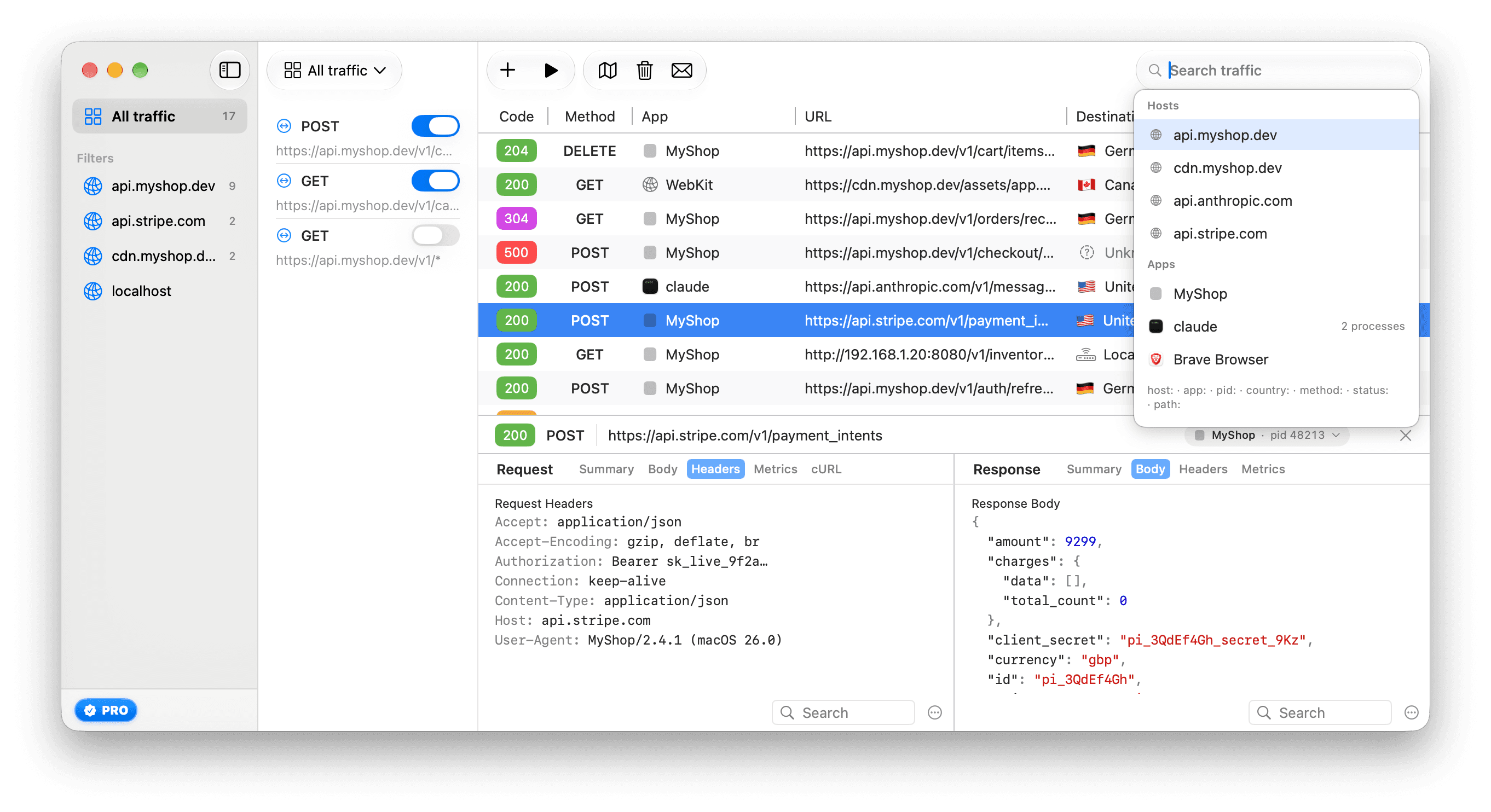
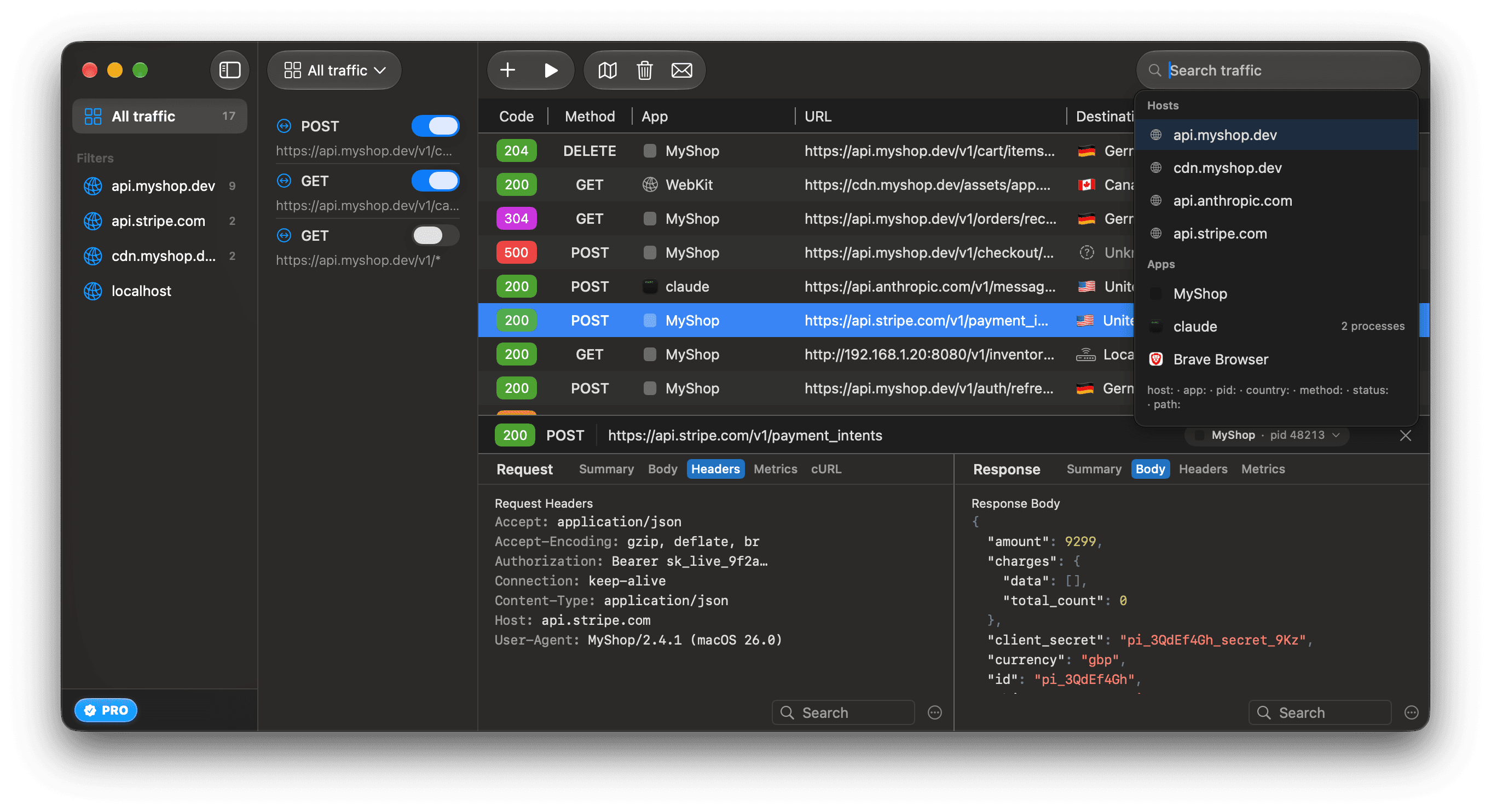
- In the traffic list, find the tool's requests. The App column shows the name of the tool's executable file, such as
curlornode. The Claude Code CLI can appear asclaude.exe. Hover a row to see the process ID.
If the tool refuses ReqRes's certificate, its request is a Failed row. The row's banner offers Export the CA and the environment lines…, which opens Settings ▸ Capture. ReqRes also remembers the refusal, as it does for a pinning app: the tool's later connections to that domain are relayed, not decrypted, and marked "SSL pinned by" and the tool's name, even once the lines are right. Click Forget on the banner, or next to the tool under Settings ▸ Capture ▸ SSL-pinned apps, then run the tool again. See See why a request failed.
To narrow the list, type app:claude in the search field. It matches any app name that contains "claude", so it finds the Claude Code CLI and Claude Desktop alike. To follow one process, type pid: and its process ID. See See which app sent a request.