
Inspect traffic
New in 1.1
See where requests go
On this page
The Destinations window plots the countries your captured requests went to on a world map. It lists the hosts and apps behind each one, and filters the traffic list to any destination.
Open Destinations
- Choose Window ▸ Destinations, or press ⌘⇧D.
- Or click the map button in the toolbar, "Show where captured requests went".
- Or right-click a request and choose Show Destination on Map. The window opens with that destination selected.
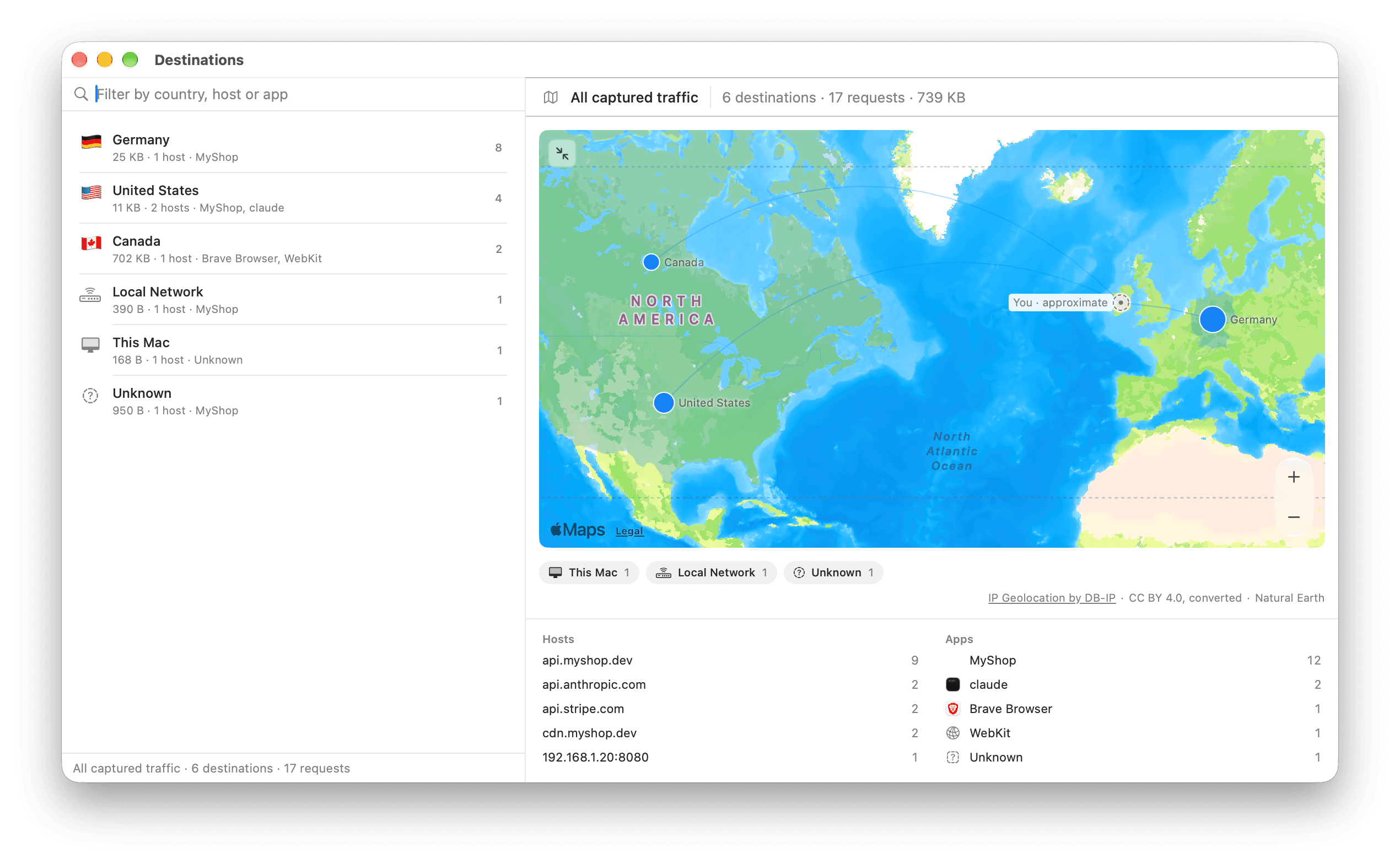
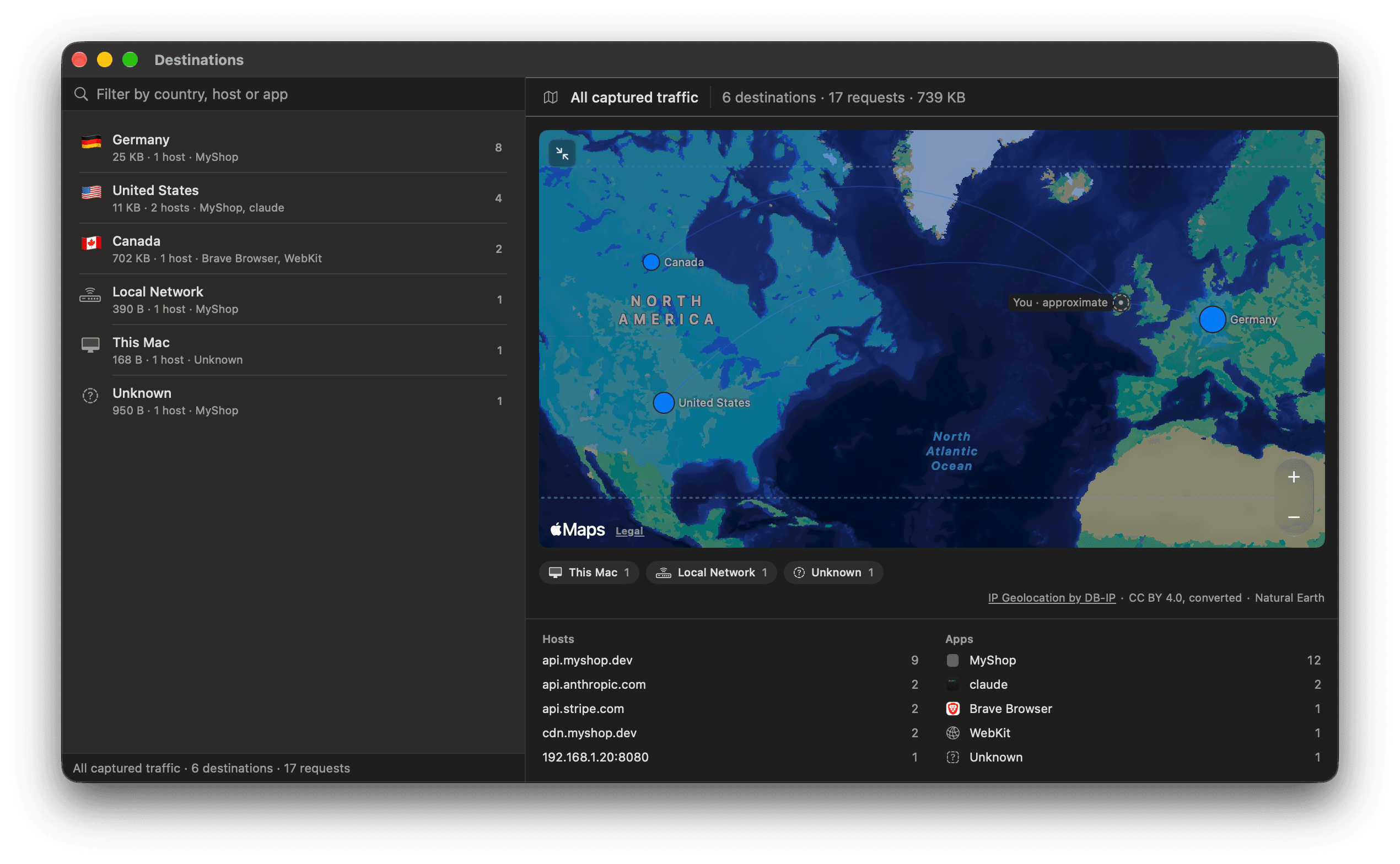
Read the map and the list
- The list on the left shows each destination and its request count. Under each name are the data sent and received, the number of hosts and the busiest apps.
- The header above the map reads "All captured traffic", then the totals, for example "6 destinations · 17 requests · 739 KB".
- The map shows a dot for each country. The busiest countries have the largest dots.
- The "You · approximate" marker shows roughly where your Mac is.
- The pills under the map count This Mac, Local Network and Unknown, which have no place on a map.
- Hosts and Apps under the map list the 5 busiest of each. Right-click a host for Show only requests to host, or an app for Show only requests from app.
To move around the map, scroll or pinch to zoom, and drag to pan. The + and − buttons zoom too. The Fit button in the map's top-left corner frames all destinations again.
Click a destination in the list or on the map to select it. The header and the Hosts and Apps lists then describe that destination only.
To narrow the list, type in the "Filter by country, host or app" field. It matches country names and codes, hosts and apps.
When capture is off and nothing has been captured, the window shows "Start Capturing to See Destinations" with a Start Capturing button. If setup is not finished, the button is Diagnose Setup… instead.
What a country means
The app defines it this way: "The country is where the address your Mac connected to is registered, at country level, from a table inside the app — a CDN answers from a nearby edge, so a site's country is where its server answered from, not where the company is."
The table stops at the country. It has no city and no coordinates.
The traffic list's Destination column shows the same destination, as Read the traffic list describes. So does the Server row in the inspector's Metrics tab.
This Mac, Local Network and Unknown
Requests in these 3 groups have no country, so they appear as pills under the map instead of dots:
| Destination | Means |
|---|---|
| This Mac | Requests to 127.0.0.1 or ::1, such as a local dev server, a simulator or another proxy. |
| Local Network | Requests to a private address: 10.x, 172.16–31.x, 192.168.x, link-local or another private range. |
| Unknown | ReqRes could not place the request. The address was missing, the table does not list it, or a rule answered the request and no server was contacted. |
A request that failed before it connected to any server went nowhere, so the window leaves it out, even from Unknown. In the traffic list its Destination still reads Unknown, and it matches country:unknown. See why a request failed explains failed requests.
Hover a pill to read its explanation. If all requests show as Unknown, stop and start capture, then run Capture ▸ Diagnose Setup…. See Run Diagnose Setup.
Filter traffic by destination
- Select a destination and click Show in Traffic, or double-click it. ReqRes selects All traffic in the sidebar, since the window counts all captured traffic, and adds a
country:token to the search field. - In the traffic list, right-click a request and choose Show only requests to country.
- In the search field, type
country:and a two-letter code, such ascountry:DE. Usecountry:mac,country:localorcountry:unknownfor the other destinations. See Search and filter traffic.
An AI agent gets the same breakdown from the list_destinations tool, and can filter list_sessions by country. list_destinations also leaves out requests that failed before connecting, and says how many. See MCP tools.
Privacy
- The lookup is offline. ReqRes finds the country on your Mac, in a table it ships with (DB-IP Lite).
- The map is Apple Maps. In the app's words, "Apple receives the map area you view — which ReqRes frames around your destinations — never the addresses themselves."
- Your location comes from your time zone. The You marker sits at the centre of the country your Mac's time zone belongs to. ReqRes never asks Location Services, and an AI agent is never told where you are.
- The map's own traffic is not listed. The map loads its tiles from
*.ls.apple.com, which is excluded from interception by default. See Pass a host through untouched. - A VPN does not hide destinations. ReqRes records the address your Mac connected to. A CDN may still pick an edge near the VPN's exit, so a dot can move.
Without a network connection the map is blank. The list, the pills and the counts still work.
Settings ▸ Capture ▸ Destinations shows which month's country table ReqRes uses, and your approximate location.
Known limits
- In the 2026-09 table, DB-IP places most of Google's IPv6 range
2001:4860::/32in Canada, including Google Public DNS at2001:4860:4860::8888. - The window adds upload and download together. The
list_destinationstool counts bodies only, so its sizes differ from the window's. - The window counts the same traffic ReqRes keeps in memory: the 5,000 most recent requests, plus any that are still open. A relayed connection counts as 1 request. Requests an app cancelled count even while the traffic list hides them.