
Get started
Install ReqRes
On this page
ReqRes comes as a disk image from GitHub Releases. Move the app to your Applications folder before you open it.
Requirements
- macOS 14.6 or later.
- A Mac with Apple silicon or an Intel processor.
- An internet connection to activate a Pro license, which ReqRes also checks online each time it opens. The free version needs no account.
Download and move to Applications
Download the disk image:
- Open the downloaded
.dmgfile. - Drag ReqRes to your Applications folder.
- Eject the disk image.
- Open ReqRes from your Applications folder.
When ReqRes runs from somewhere else and its extension is not running, Capture ▸ Diagnose Setup… says so: "ReqRes is not running from /Applications, so macOS will not activate its network extension." Quit ReqRes, move it to /Applications and open it again.
First launch
Each time ReqRes opens without a license, it shows the ReqRes Pro window. Choose one of these:
- Continue with Free Version closes the window. The free version allows 2 host filters, 1 rule and 10 HTTPS inspections per launch. Opening a relayed connection or a Failed request never uses an inspection. The limits are listed in Free version and Pro.
- Activate License… opens the Activate License sheet. Paste the key from your email, in the form
XXXXX-XXXXX-XXXXX-XXXXX, then click Activate.
Activation is online, and it ties the license to this Mac. A license covers up to 2 Macs at once; to free a place for a new Mac, see Move your license to another Mac. You can also activate later in Settings ▸ License.
Pro lifts the free version's limits. Everything else in ReqRes is in the free version too. To buy a license, see pricing.
Next, set up capture. The main window shows a setup checklist until the network extension is approved.
Updates
Updates do not depend on a license. The free version updates too, and a license includes every 1.x update.
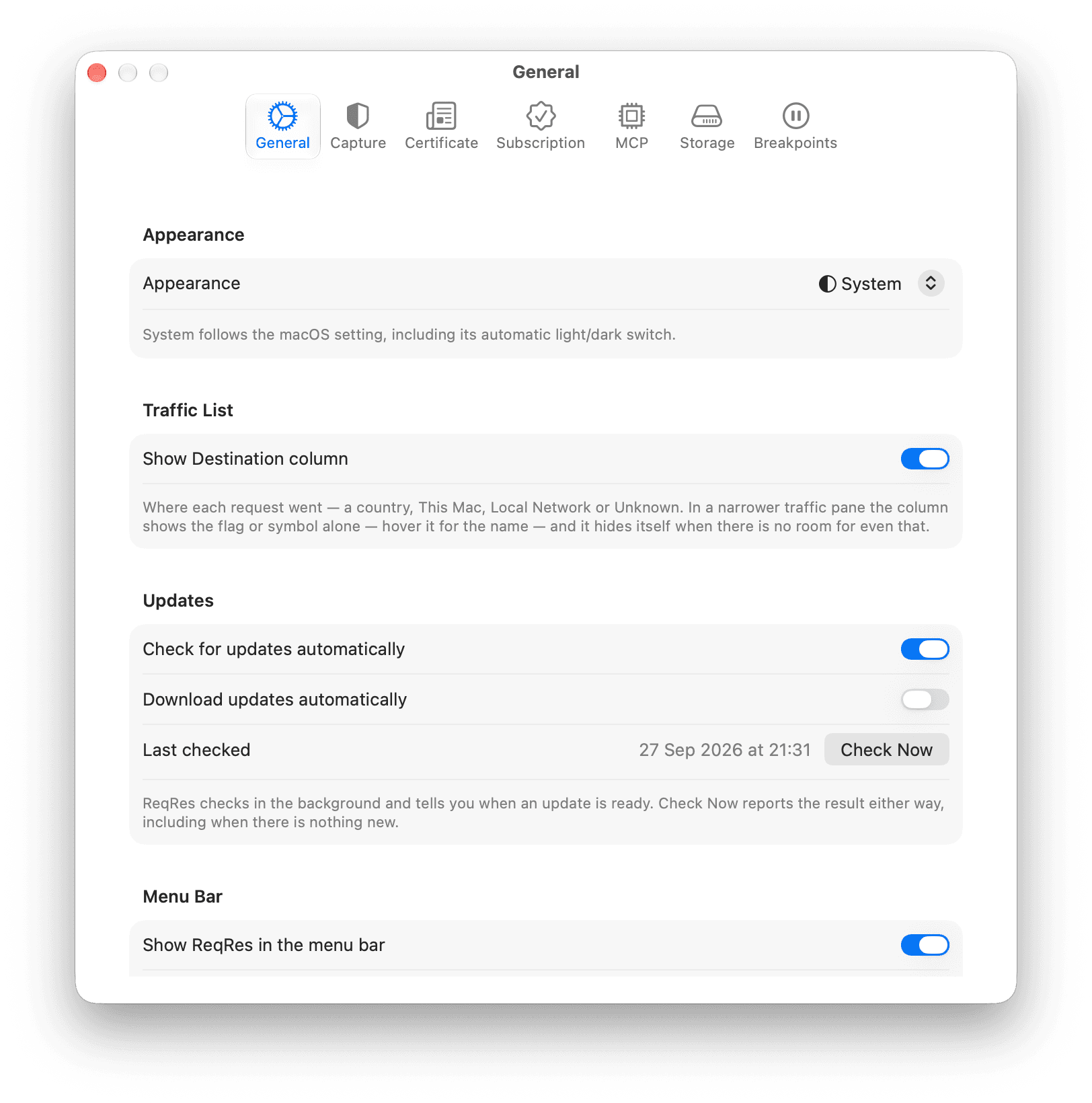
- To check now, choose ReqRes ▸ Check for Updates... in the menu bar, or click Check Now in Settings ▸ General ▸ Updates. Both report the result, including when there is nothing new.
- To check in the background, turn on Check for updates automatically in the same section. ReqRes then tells you when an update is ready.
- To have ReqRes download updates as well, turn on Download updates automatically.
The first launch after an update replaces the network extension with the new version. macOS swaps it in about 2 s, with no password prompt and no restart. If the setup checklist appears again, follow Set up capture once more.
Update from ReqRes 1.0.x
ReqRes now creates its own certificate on each Mac. If the "ReqRes CA" that ReqRes 1.0.x installed is still in your keychain, ReqRes offers to replace it at launch, in a sheet titled "Replace the Old ReqRes Certificate".
- Replace Old Certificate removes the old certificate, installs and trusts this Mac's, and restarts capture if it is running. macOS asks for your password.
- Not Now removes nothing, and the sheet comes back at the next launch. Until the old certificate is gone, Settings ▸ Certificate shows a banner with the same Replace Old Certificate button.
See Replace an old certificate.
Before you delete ReqRes
Deleting ReqRes does not remove its certificate or your trust in it. Before you delete the app, remove the certificate as described in Remove the certificate by hand.