
Inspect traffic
Read the traffic list
On this page
The traffic list shows the requests ReqRes captures, newest first.
The window
The main window has three panes:
- The sidebar lists All traffic and, under Filters, your host filters. Each entry shows how many requests it holds. Press ⌃⌘S to show or hide it.
- The rules pane lists the rules for the selected sidebar entry. See Change requests and responses with rules.
- The traffic pane holds the list. When you select a request, the inspector opens below it.
When the window is too narrow for all three panes, the sidebar collapses. It comes back when you widen the window.
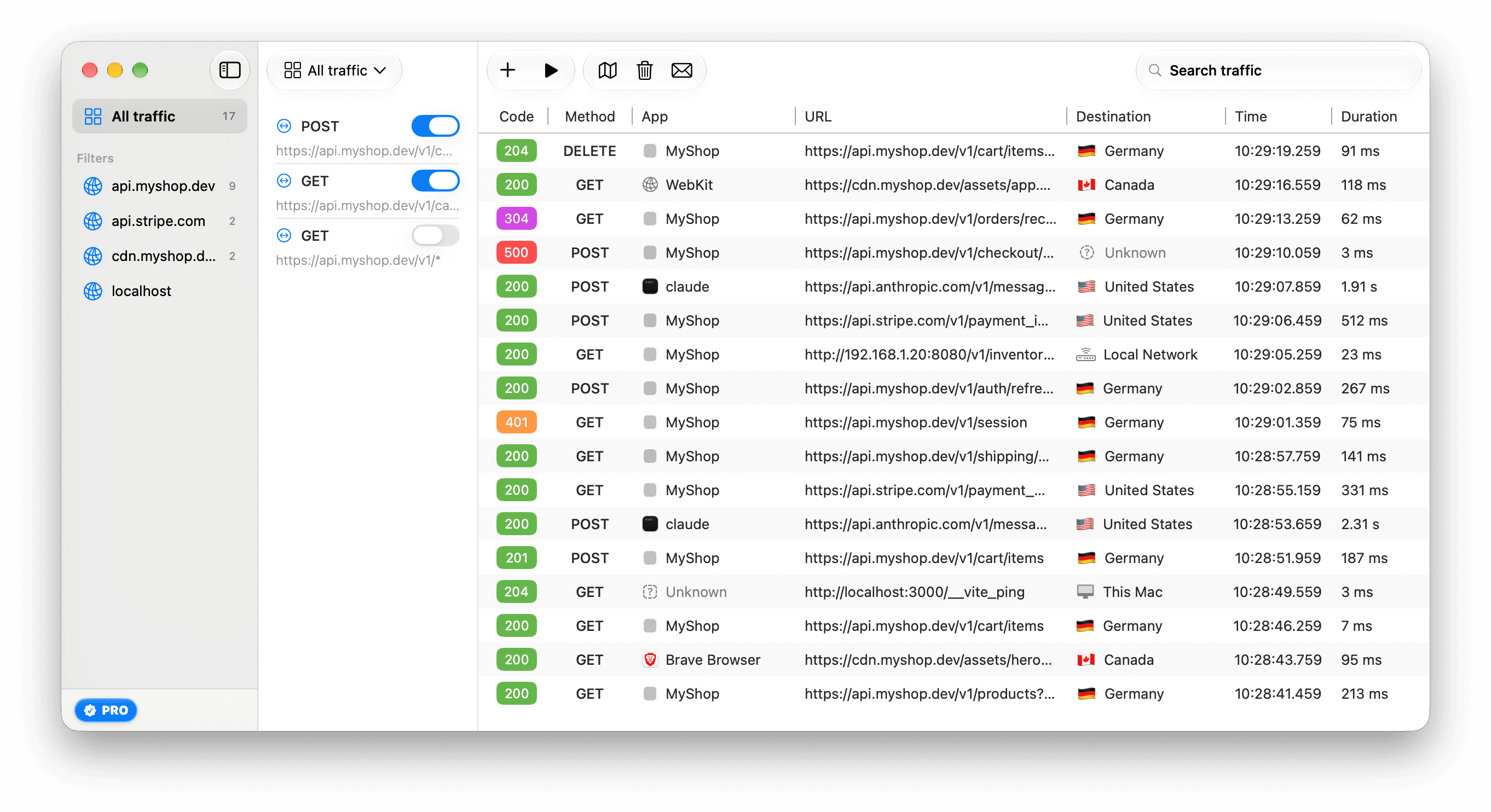
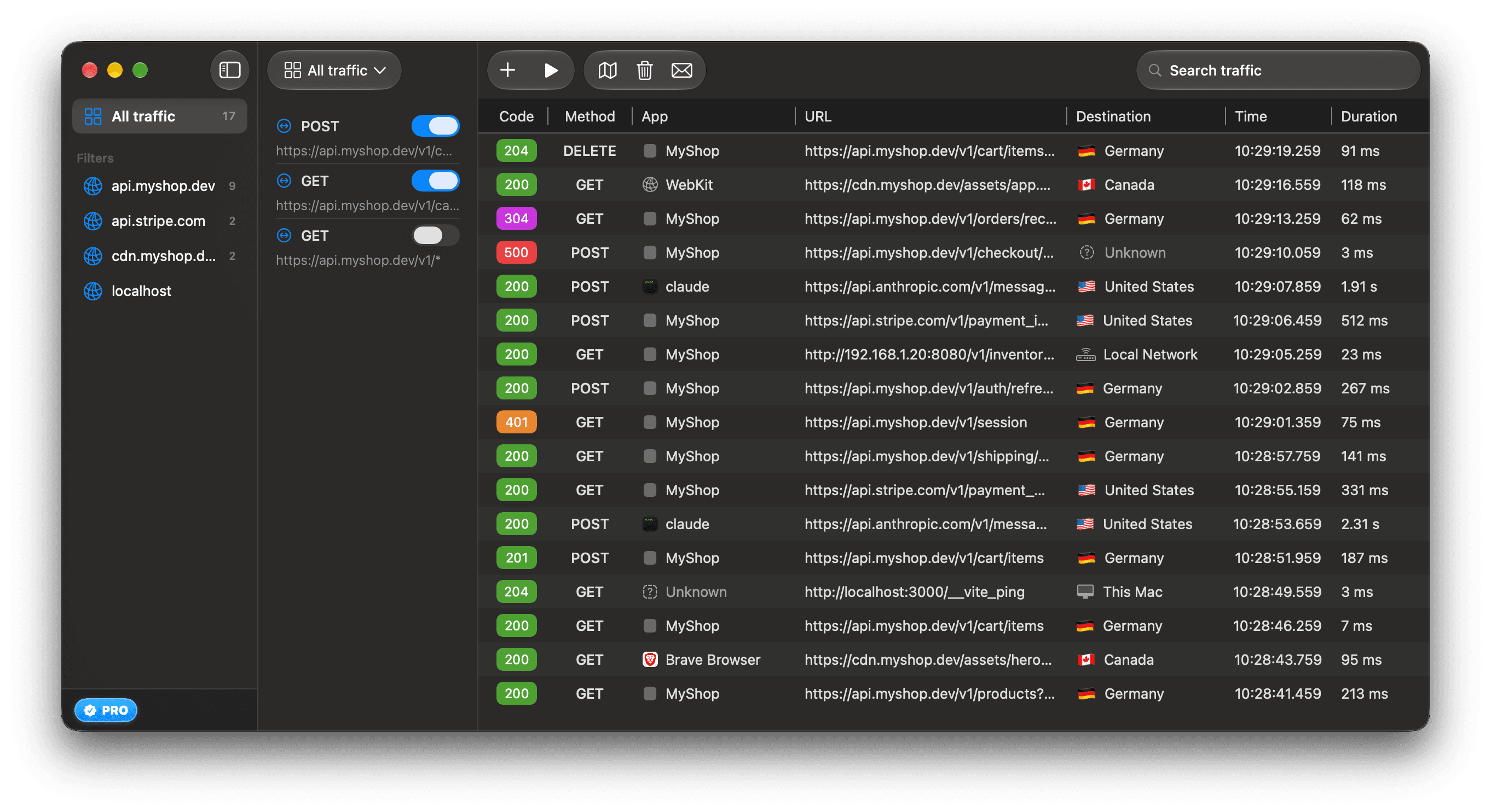
The toolbar holds these items, from left to right:
| Item | What it does |
|---|---|
| Sidebar toggle | Shows or hides the sidebar. |
| Host menu | Shows the selected sidebar entry. Click it to switch to another. |
| + | Opens Add a Host Filter and Create an Override. |
| ▶ | Starts and pauses capture. |
| Map | Opens the Destinations window. |
| Trash | Clears captured traffic. |
| Envelope | Send feedback. |
| Free HTTPS inspections | In the free version only, how many of the 10 are left. |
| Search | Filters the list. See Search and filter traffic. |
In a narrow window, items that do not fit move into the » menu at the end of the toolbar.
Columns
| Column | Shows |
|---|---|
| Code | The response status code, or a glyph for a row that is not a finished request. See Read rows that are open, failed or relayed. |
| Method | The HTTP method. Empty on a relayed connection. |
| App | The app or process that opened the connection. |
| URL | The full URL. Some rows put a word before it, as described below. |
| Destination | Where the request went: a country, This Mac, Local Network or Unknown. |
| Time | When the request started, to the millisecond. |
| Duration | How long the request took, from start to the end of the response. It counts up while the request is still open. |
App. Several requests can share one connection, so they share one app name. A tool that ignores the system proxy never reaches ReqRes, so it is not in the list at all. See which app sent a request explains the names. When ReqRes cannot read which process owns a connection on your Mac, it hides this column.
Destination. When the column is narrow it shows only the flag or symbol. Hover it to see the name. When there is no room even for that, the column hides. To hide it at every width, turn off Settings ▸ General ▸ Traffic List ▸ Show Destination column. See where requests go explains what a country means.
Resize a column
Every column but URL keeps a set width, so rows never shift. URL takes the space the others leave.
- To resize Method, App, Destination, Time or Duration, drag the divider at the edge of its header nearest URL. Code cannot be resized.
- To put one column back, double-click its divider.
- To put all of them back, right-click the header and choose Reset Column Widths.
ReqRes remembers the widths you set. A Destination column dragged wide enough shows the country's name beside the flag.
Read rows that are open, failed or relayed
A request that is still open is listed while it runs, from 250 ms after it started, or from its response head for a stream. While it waits for the response, the Code column shows a grey hourglass and the URL starts with "Waiting". Once the response starts, the status code shows and the URL starts with "Streaming" and the size so far. The finished row then replaces it in the same place. See Read streaming responses.
A row whose URL starts with "Ended", with a question mark in the Code column, is a request whose end was never recorded. Capture stopped while it was open, or ReqRes stopped hearing about it. Its Duration shows a dash.
Failed, Aborted and Timed out rows show a glyph instead of a status: a red octagon with an ✕, a grey circle with a slash, or an orange hourglass. Hover it to read the outcome and the reason. See See why a request failed.
A relayed connection is one row for a whole connection that ReqRes passed on without reading. It is written when the connection closes. Its Code column shows a crossed-out lock, or the outcome glyph when the connection failed or timed out, and its Method column is empty. The URL column gives the endpoint, a word, and the bytes sent each way, as in api.example.com:443 · not decrypted · ↑ 512 B ↓ 24 KB. The word says why ReqRes did not read it:
| Word | Why |
|---|---|
| not decrypted | The ReqRes certificate was not installed and trusted when the connection opened. See Trust the ReqRes certificate. |
| not HTTP | The connection carried neither HTTP nor TLS, such as SSH or a database. |
| SSL pinned by app | The app checks its servers' certificates itself, or macOS pins the host, as in "SSL pinned by macOS · iCloud". The Code column shows a pin. See Keep SSL-pinned apps working. |
A gRPC-Web, Connect or gRPC call whose own status differs from its HTTP status shows that status before the URL, such as NOT_FOUND beside a 200. See Capture HTTP/2 and gRPC.
The row menu
Right-click a request to act on it:
| Item | What it does |
|---|---|
| Show only requests from app | Filters the list to that app. |
| Show only this process (pid N) | Filters the list to that one process. |
| Show only requests to destination | Filters the list to that country, this Mac or the local network. |
| Show Destination on Map | Opens Destinations with this destination selected. |
| Save session | Keeps the request on disk after you quit. |
| Delete session | Removes the request from the list at once, without asking. |
- The app and process items appear only when ReqRes knows the app.
- The destination filter is missing when the destination is Unknown. Show Destination on Map is always there.
- Each filter item adds a token to the search field, such as
app:claudeorcountry:DE. Remove the token to see the full list again. - A request that is still open, or that ended without its final row, is never saved. Save session leaves such rows out, and is unavailable when every row it would save is one.
To act on several requests, select them with ⌘-click or Shift-click, then right-click one of them. Save session and Delete session then act on the selected requests and name the count, as in Save 3 sessions and Delete 3 sessions.
Right-click a request outside the selection, and both items act on that request alone. The selection stays as it was.
Move through the list with the keyboard
Click a request, then use the arrow keys:
- Down Arrow and Up Arrow select the request below or above the selection, and the list scrolls to keep it in view.
- With nothing selected, Down Arrow selects the request at the top of the list and Up Arrow the one at the bottom.
- At the first or the last request, the selection stays where it is. It does not wrap around.
- ⇧Down Arrow and ⇧Up Arrow grow the selection a request at a time from where it started, and shrink it again on the way back. Shift-click selects all the requests from that starting point to the one you click.
The inspector shows the request you move to once you stop: 150 ms after the last key, and not while you hold an arrow key down. Holding Down Arrow to skim the list therefore opens only the request you stop on, and uses at most 1 of the free version's 10 HTTPS inspections. A click shows its request at once. With several requests selected, the inspector shows the one you clicked or moved to last.
The arrow keys act on the list in the same places as Delete, described in Clear and delete. Elsewhere they keep their own meaning: in the search field they move through the suggestions, in a body you are reading in the inspector they move the text cursor, and in the sidebar they move its selection. Held with ⌘, ⌥ or ⌃, they are never the list's.
How much ReqRes keeps
- Captured requests are kept in memory only.
- All traffic keeps the 5,000 most recent requests. Older ones are dropped as new ones arrive. A request that is still open is never dropped, so the list can pass 5,000 for a while.
- Each host filter keeps its own 5,000. A host filter can still show a request that All traffic has dropped.
- Each request keeps at most the first 16 MB of its bodies, request and response together. The whole body is still sent on, and the Body tab says how much is not shown.
- A WebSocket keeps its first 200 and last 2,000 messages. See Read WebSocket messages.
- Requests an app cancels itself are hidden unless Settings ▸ Capture ▸ Requests that did not complete ▸ Show cancelled requests is on. The sidebar counts leave them out while they are hidden.
- Stopping capture does not clear the list.
- Quitting ReqRes clears all of it.
- If ReqRes quits unexpectedly while capturing, such as in a crash or a Force Quit, capture keeps running. When you open ReqRes again, it reconnects, usually within a few seconds, and lists the most recent of the requests captured meanwhile.
- A line above the list then says how many, as in "4 requests were captured while ReqRes was closed.", and how many earlier ones were not kept, if any. Click × to dismiss it. Start and stop capture covers a capture that does not reconnect.
To keep a request after you quit, save it.
Clear and delete
To remove requests, select them and press Delete, or choose Delete session from the row menu. ReqRes removes them at once, without asking.
Delete and Esc act on the list once you click a request, which gives the list the keyboard. The Esc that takes you out of the search field gives the list the keyboard too, so a Delete after it removes the selected requests.
- Delete, or forward delete, removes the selected requests.
- Esc deselects them, which closes the inspector. Esc does the same after you click into text you are reading in the inspector, such as a body. Delete removes nothing there.
- Neither key acts on the list while you type in a field, such as the search field, or while the sidebar or the rules pane has the keyboard. Click a request to give the keyboard back to the list.
- Neither key acts on the list while a sheet or an alert is open, in another window such as Saved Sessions, or with ⌘, ⌥ or ⌃ held.
The trash in the toolbar clears all captured requests, including those hidden by a search or a host filter. ReqRes asks first, unless you chose "Don't ask again". Saved sessions are not affected. Start and stop capture describes the alert.