
Get started
Start and stop capture
On this page
Capture runs until you stop it or quit ReqRes. Closing the window does not stop it.
Start and stop
- Click the capture button in the toolbar. It shows ▶ while capture is off and ⏸ while capture runs.
- Choose Capture ▸ Start Capturing. While capture runs, the same item reads Stop Capturing.
- Press ⌘⇧C. The shortcut also works when a narrow window has folded the capture button into the » menu.
The menu item is unavailable while capture is starting or stopping, or while macOS reports it as reconnecting. The toolbar button's tooltip names the current state:
| Tooltip | Capture is |
|---|---|
| "Start capturing traffic" | Off |
| "Starting capture…" | Starting |
| "Pause capturing traffic" | Running |
| "Reconnecting…" | Reconnecting, as macOS reports it |
| "Stopping capture…" | Stopping |
ReqRes reconnecting to a capture that kept running after it quit unexpectedly is a different state. Capture is running then: the button shows ⏸, its tooltip reads "Pause capturing traffic", and the menu item reads Stop Capturing. See Close the window or quit.
Stopping capture keeps the requests you already captured.
If another program listens on the proxy port, capture does not start. An alert such as "Port 8034 is in use" names the program and offers the next free port. A button such as Use Port 8035 saves that port and starts capture on it. Cancel leaves the port as it is. See Change the proxy port.
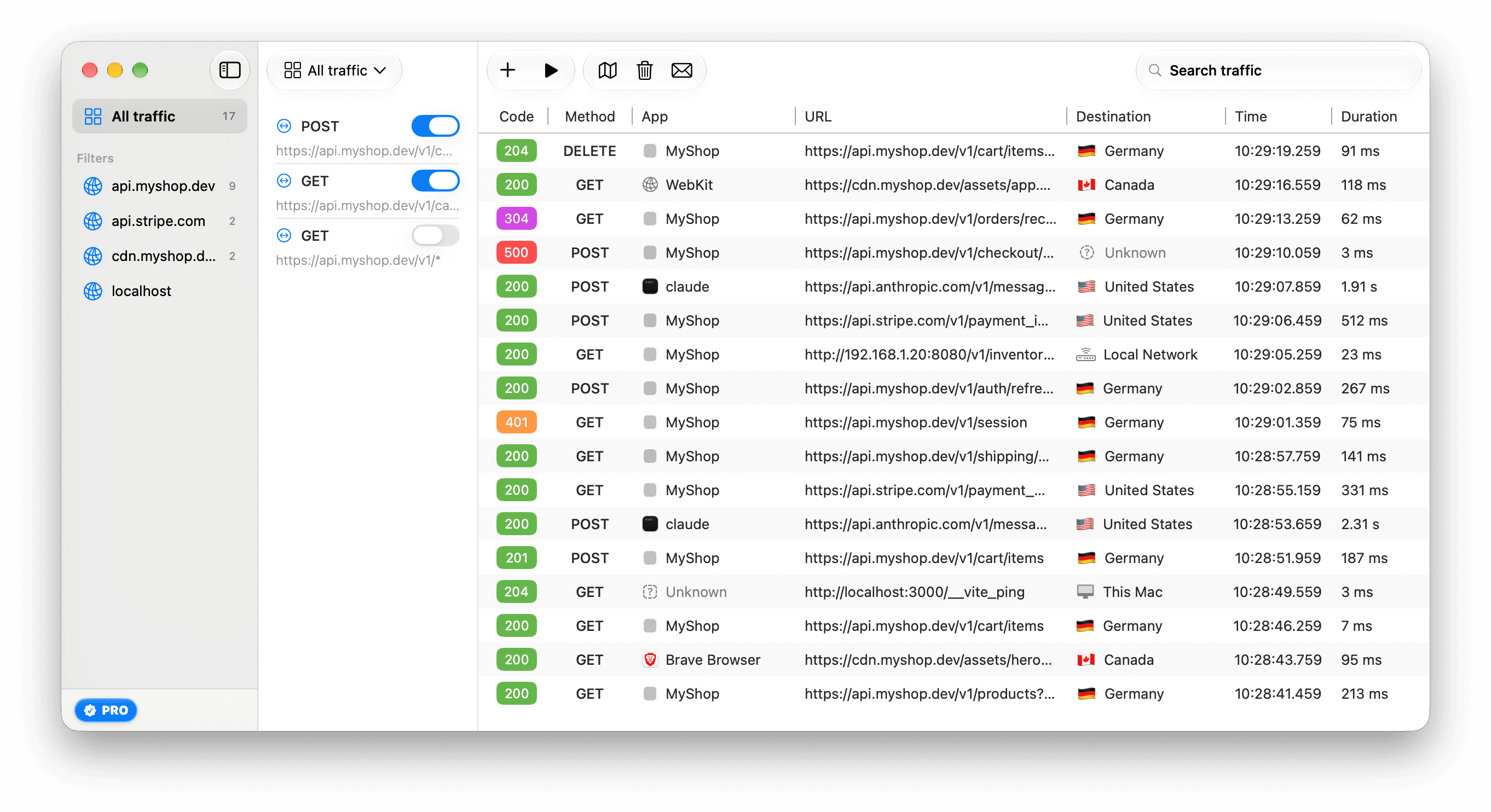
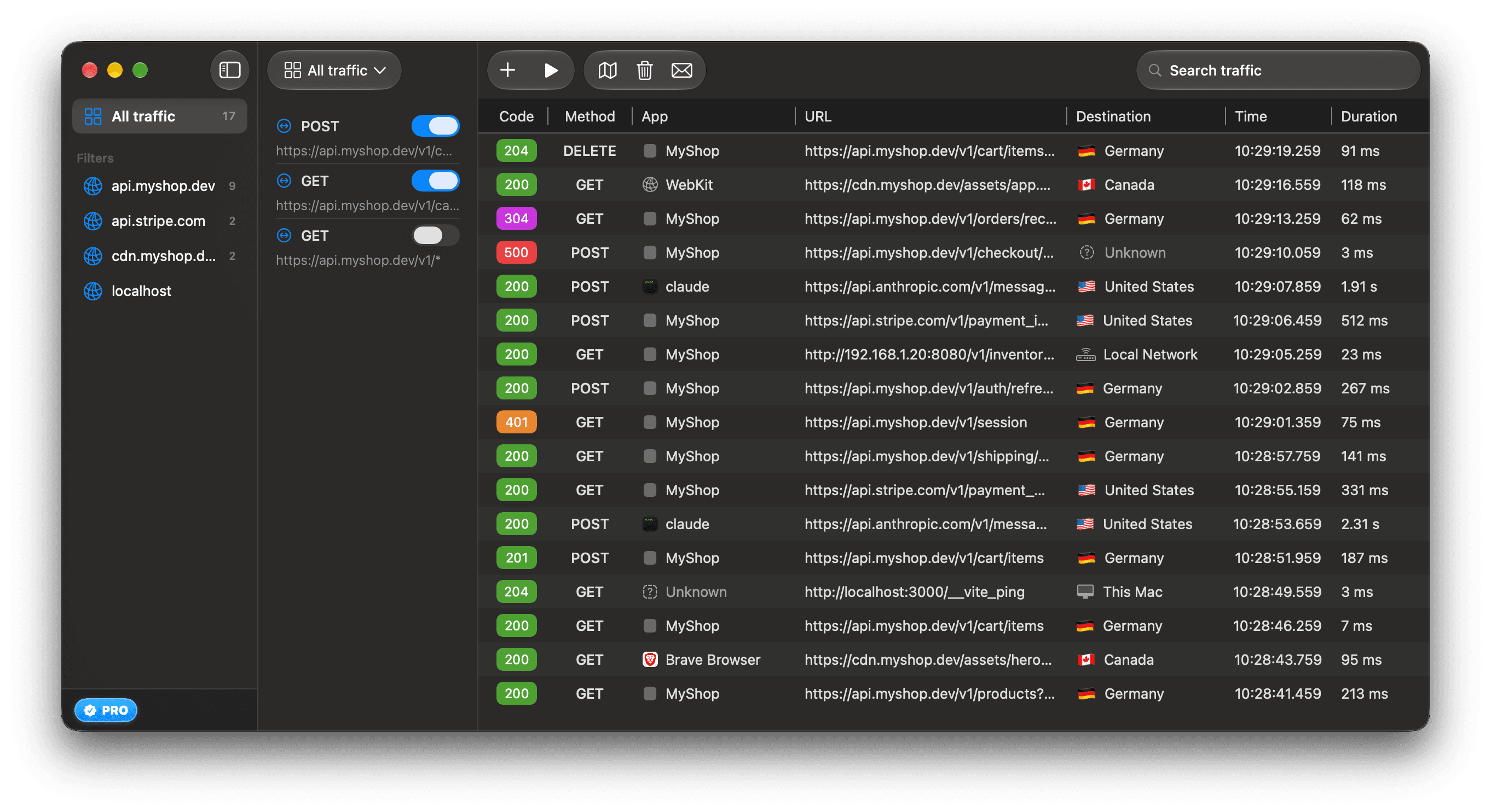
The menu bar icon
ReqRes puts an icon in the menu bar. It shows the state of capture:
| Icon | Meaning |
|---|---|
| Filled dot | Capturing |
| Hollow dot | Not capturing |
| Triangle with an exclamation mark | Setup needs attention, or capture is on but not reaching ReqRes |
| Circle with an exclamation mark | Requests are held at a breakpoint |
Click the icon to start or stop capture, open ReqRes or Settings, or quit. Every item is listed in Menus and the menu bar item.
To hide the icon, turn off Settings ▸ General ▸ Menu Bar ▸ Show ReqRes in the menu bar. The same switch brings it back.
Close the window or quit
After you close the window, the menu bar icon shows that capture is still on.
Quitting ReqRes stops capture. If capture is running, ReqRes asks first:
Quit ReqRes and stop capturing?

Capturing stops when ReqRes quits, and captured traffic that you have not saved is discarded. Closing the window instead leaves capture running.
Click Quit and Stop to quit, or Cancel to keep ReqRes open. In the menu bar icon's menu, the item reads Quit ReqRes (stops capture) while capture runs.
To keep a request after you quit, save a session.
If ReqRes quits unexpectedly while capture runs, after a crash or a Force Quit, capture keeps running. Open ReqRes again. It shows capture as running, reconnects to it within a few seconds, and lists the requests captured while it was closed. See ReqRes quit while capturing.
What you see first
When the setup checklist is done, the main window shows one of these while the traffic list has nothing to show:
| Message | When |
|---|---|
| "Start Network Monitoring" | Capture is off and the list is empty, for example after you clear it. Click Start Monitoring. |
| "No Requests" | Capture is on and nothing has arrived yet, or the selected host filter has no requests yet. Browsers and most apps arrive by themselves. A command-line tool needs a few environment lines first. |
| "Reconnecting to the running capture…" | ReqRes opened while capture was still running, for example after a crash. The requests captured meanwhile appear within a few seconds. |
| "Capture is on, but ReqRes isn't receiving it" | Capture is running, but new requests do not reach this window, and ReqRes could not reconnect to it by itself. The message says why. Click Restart Capture. |
| "No Requests Found" | Nothing matches your search. See Search and filter traffic. |
If the checklist is still showing, finish Set up capture.
Not every row is a finished request:
- Until the certificate is trusted, ReqRes relays HTTPS without reading it. Each connection is one row marked "not decrypted", written when the connection closes. ReqRes closes a silent relayed connection after 10 minutes, and an app can keep one open that long, so the list can read "No Requests" for a while. See Trust the ReqRes certificate.
- A slow or streaming request appears while it is still open, and its row grows until the response ends. See Read streaming responses.
- A request that failed, was cut off or timed out is still a row, with the reason in one sentence. Requests an app cancels itself are hidden unless Settings ▸ Capture ▸ Show cancelled requests is on. See See why a request failed.
Clear captured traffic
- Click the trash button in the toolbar. Its tooltip reads "Clear captured traffic".
- In the "Clear Captured Traffic" alert, click Clear.
Clearing removes every captured request, and it cannot be undone. "Saved sessions are not affected."
To skip the alert next time, select Don't ask again before you click Clear. To bring the alert back, open Settings ▸ General ▸ Confirmations and click Reset All Warnings.
Open ReqRes at login
Turn on Settings ▸ General ▸ Startup ▸ Open ReqRes at login. ReqRes then opens when you log in, but capture stays off: "Opening at login does not start capture — ReqRes waits for you to start it."
If macOS needs your approval first, the row says "Waiting for your approval in System Settings ▸ General ▸ Login Items." Click Open Login Items and allow ReqRes there.