
Inspect traffic
Inspect a request
On this page
The inspector shows one captured request and its response. The request is on the left and the response on the right, each with its own tabs.
Open a request
- Click a request in the traffic list. The inspector opens below the list.
- Read the header line: the status code, the method, the full URL, and a pill with the app and its pid.
- Click × at the end of the header line to close the inspector. Esc closes it too, after you click the request or the text you are reading. See Clear and delete.
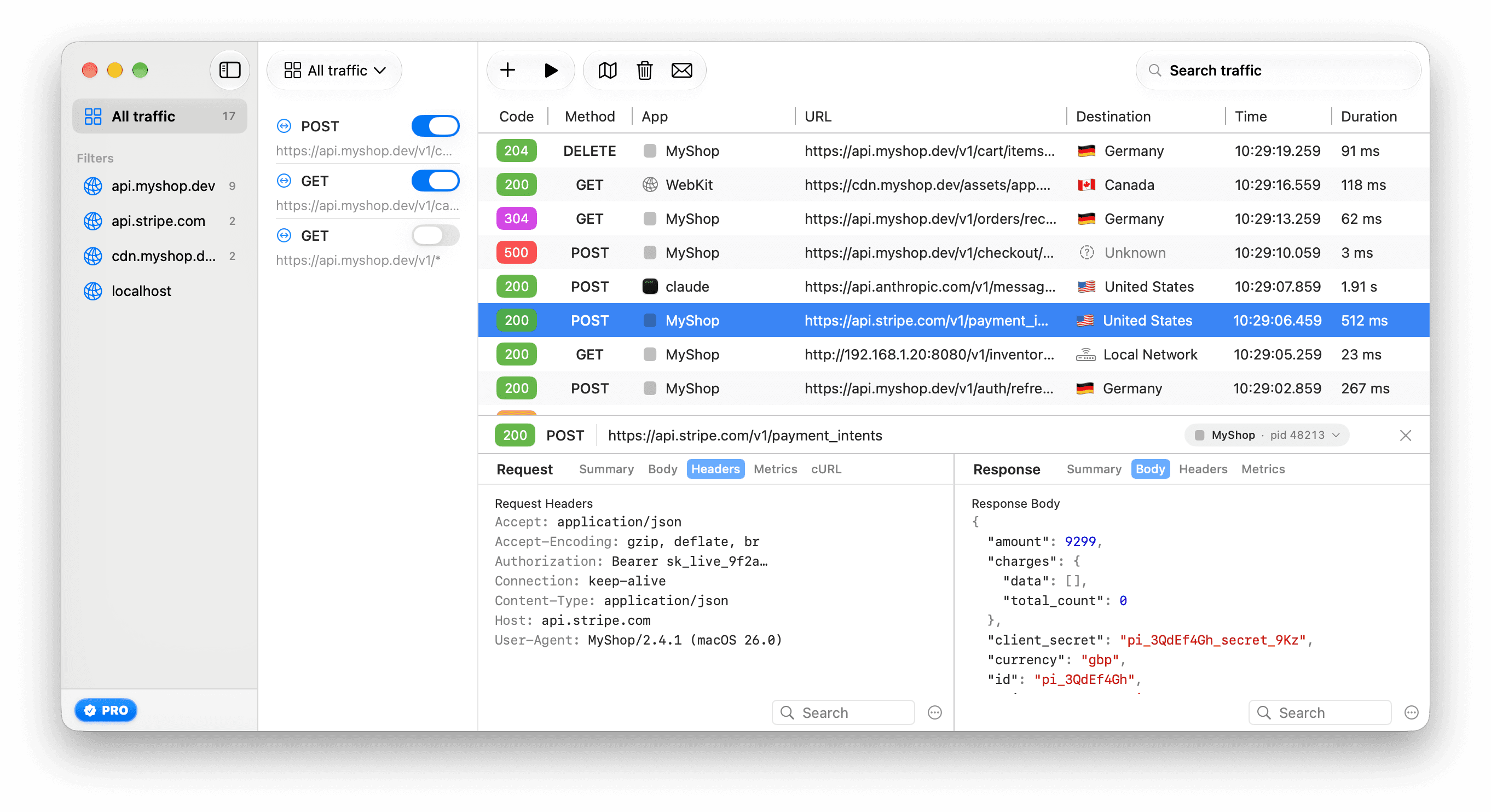
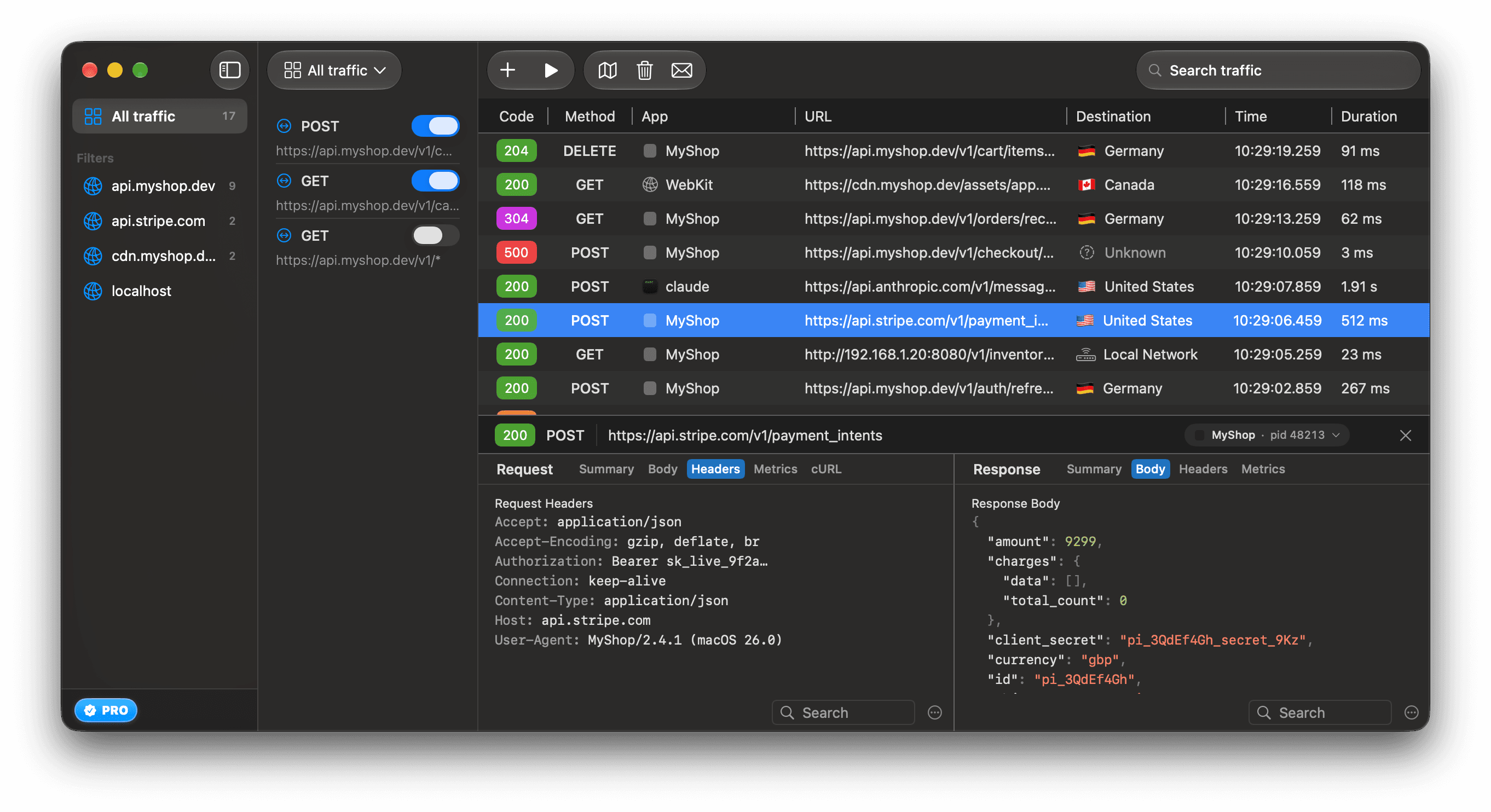
When ReqRes knows the app, click the app pill for these items:
- Show only requests from app
- Show only this process (pid N)
- Show in Finder and Copy path, when ReqRes knows where the app is on disk
See which app sent a request explains the app names.
ReqRes remembers the last tab you picked on each side and opens the next request on the same tabs. When the next response has no such tab, as with Events, Messages or RPC, it opens on Body.
Some rows have a different header line:
- A relayed connection reads "Not decrypted", "Not HTTP" or "SSL pinned", then the endpoint and the bytes sent each way.
- A request that did not complete shows its outcome glyph and word, the status of an Aborted or Timed out request that had one, the method and the URL. A banner under the header gives the reason. See See why a request failed.
- A request that is still open shows a grey hourglass until its response starts. A row that ended without its final row adds a banner, "Ended without its final row", that says what is missing.
- A gRPC-Web, Connect or gRPC call shows its own status beside the status code when the two differ.
Read a relayed connection
A relayed connection has no request or response to show. Its inspector lists what ReqRes knows about the connection:
| Row | Shows |
|---|---|
| Endpoint | The host and port. |
| Protocol | relay/tcp. |
| SSL pinned by | For a pinned connection, the app or the macOS service. |
| Server | The address your Mac connected to. |
| Sent, Received | The bytes each way. |
| Opened, Closed, Open for | When the connection opened and closed, and how long it lasted. |
When the ReqRes certificate was the reason, the view offers Open Certificate Settings….
An HTTPS request that ReqRes did decrypt shows "Not Available" and "Install and trust the ReqRes CA Certificate to inspect HTTPS requests" when the ReqRes certificate is no longer installed. The Install CA Certificate button opens the certificate settings. See Trust the ReqRes certificate.
Request tabs
| Tab | Shows |
|---|---|
| Summary | The host, the app with its pid, the app's path on disk, the query parameters, the request headers and the cookies. It adds the outcome and the reason for a request that did not complete. It also notes a reused connection and a body that is binary, kept only in part, or in an encoding ReqRes does not decode, and lists any trailers. |
| Body | The request body, when it is JSON. Other request bodies show "Not Available"; a text body, such as a form, is still in the cURL tab. |
| Headers | The request headers, sorted by name, with cookies last. Trailers follow under Request Trailers. |
| Metrics | The timings. See Timings. |
| cURL | The request as a curl command, to paste into Terminal. |
The cURL tab's command is curl -v with the method, each request header and the URL. A text body goes in --data-raw. A request with no body, or with a body that is not text, has none in the command.
The URL, each header and the body are in single quotes, or in the $'…' form when they hold a line break or another control character. Pasting the command into Terminal therefore runs nothing from the captured request, such as a $(…) in a header.
Response tabs
| Tab | Shows |
|---|---|
| Summary | The host, the status message, the response headers and a preview of the body, with the same notes as the request side. A native gRPC call adds a gRPC Status line. |
| Body | The response body. While the request is still open, the text as it arrives. |
| Headers | The response headers, sorted by name, with cookies last. Each Set-Cookie header is listed. Trailers follow under Response Trailers. |
| Metrics | The same timings as on the request side. |
| Events | For server-sent events and JSON lines: each event, and for an Anthropic or OpenAI stream the answer put back together. See Read streaming responses. |
| Messages | For a WebSocket: the messages both ways. See Read WebSocket messages. |
| RPC | For a finished gRPC-Web, Connect or gRPC call: its messages and status. See Capture HTTP/2 and gRPC. |
The response body is shown by type:
- JSON and HTML are highlighted.
- A URL-encoded form shows as a list of fields.
- An image shows as the image, scaled to fit.
- Binary data that is not an image shows its size and a hex dump of its first 512 bytes.
- Other text shows as plain text.
ReqRes decides whether a body is text or binary from its Content-Type first:
- A body whose type says text, such as JavaScript, JSON, XML or any
text/type, shows as text even when it holds control characters, as minified JavaScript sometimes does. A NUL byte, or bytes that are not valid in its character set, still make it binary. - A body whose type says binary, such as an image, a font, a PDF or protobuf, is binary.
- With no type, or with
application/octet-stream, a form or multipart, the bytes decide, even when the type names acharset.
ReqRes decodes bodies sent with gzip, deflate, brotli or zstd, including a body encoded more than once. A body in another encoding, such as compress, is shown as sent, and a line above it names the encoding.
ReqRes keeps the first 16 MB of each request's bodies. When it kept only part of a body, a notice above the body says how much is not shown. The whole body was still sent on.
The Summary preview holds the first 10 lines of JSON, or the first 200 characters of HTML and other text. Binary data shows as a hex dump.
The inspector shows real values. Headers, cookies and tokens appear exactly as they were sent. Redaction applies only to what an AI agent reads, as Control what agents see explains.
Search inside a body
The Summary, Body, Headers and cURL tabs have a Search field at the bottom. A request Body that shows "Not Available" and the Body of a request that is still open have none. The Messages tab has its own Search messages field.
- Click Search under the side you are reading.
- Type the text to find.
- Use the arrows next to the match count, such as "2 / 5", to move between matches.
The ⋯ menu next to the field sets how the text matches:
- Text, Wildcard or Regular Expression
- Ignoring Case or Matching Case
Timings
The Metrics tab breaks the request into phases. Each phase is a bar on one shared timeline, so the slowest phase stands out.
| Section | Rows |
|---|---|
| Network Load | Upload and Download, the bytes sent and received. A body kept only in part reads, for example, "40 MB (16 MB kept)". |
| Scheduling | Queued. |
| Connection | Protocol, Server, then DNS, TCP, and Secure for HTTPS. |
| Response | Request, Waiting and Download. |
The Protocol row reads HTTP/1.1, HTTP/1.0, HTTP/2 or WebSocket. Capture HTTP/2 and gRPC explains it.
The Server row shows the address your Mac connected to, then its destination: a country, This Mac, Local Network or Unknown. See where requests go explains what each one means.
A request that went out on a connection an earlier request opened had no DNS lookup, TCP connect or TLS handshake of its own. In place of those bars, a Setup row reads, for example, "Reused connection · request 3 on it".
The free limit
In the free version, opening an HTTPS request in the inspector uses 1 of 10 free HTTPS inspections.
- HTTP requests never count.
- A relayed connection and a Failed row never count. An Aborted or Timed out row that kept a body counts like any other request.
- A request counts once, however long it stays open. Its Events and Messages tabs use nothing more.
- Capture and the traffic list are not limited.
- The toolbar shows how many inspections are left.
- The count resets when you restart ReqRes.
After 10 inspections, the inspector shows "No Free HTTPS Inspections Left" and "The free version includes 10 HTTPS inspections per launch. Upgrade for unlimited HTTPS inspections." with an Upgrade… button, which opens the ReqRes Pro window. Free version and Pro lists the other limits.